Modern Warfare Hintergrundbilder
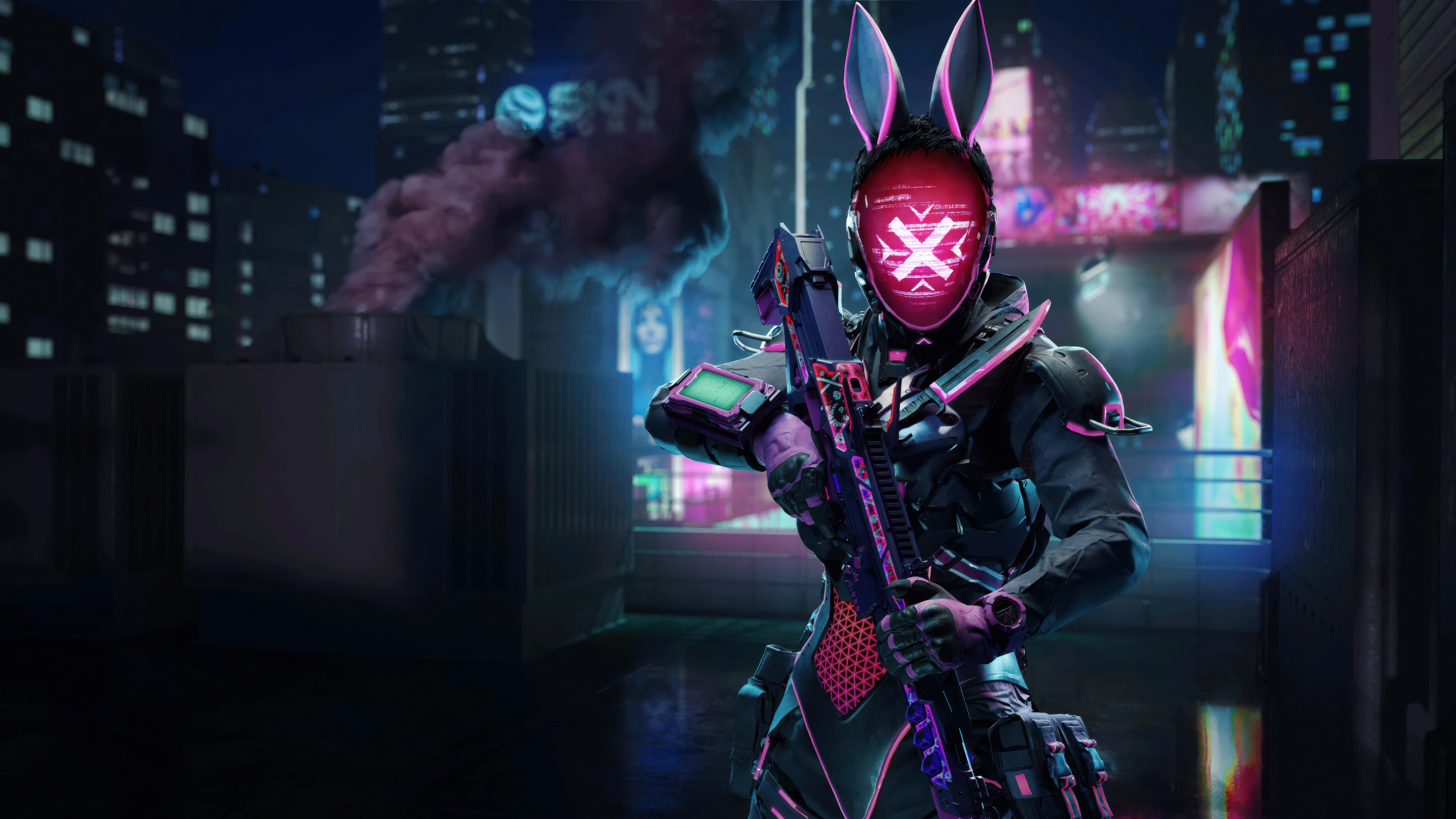 Echo Endo Yandere
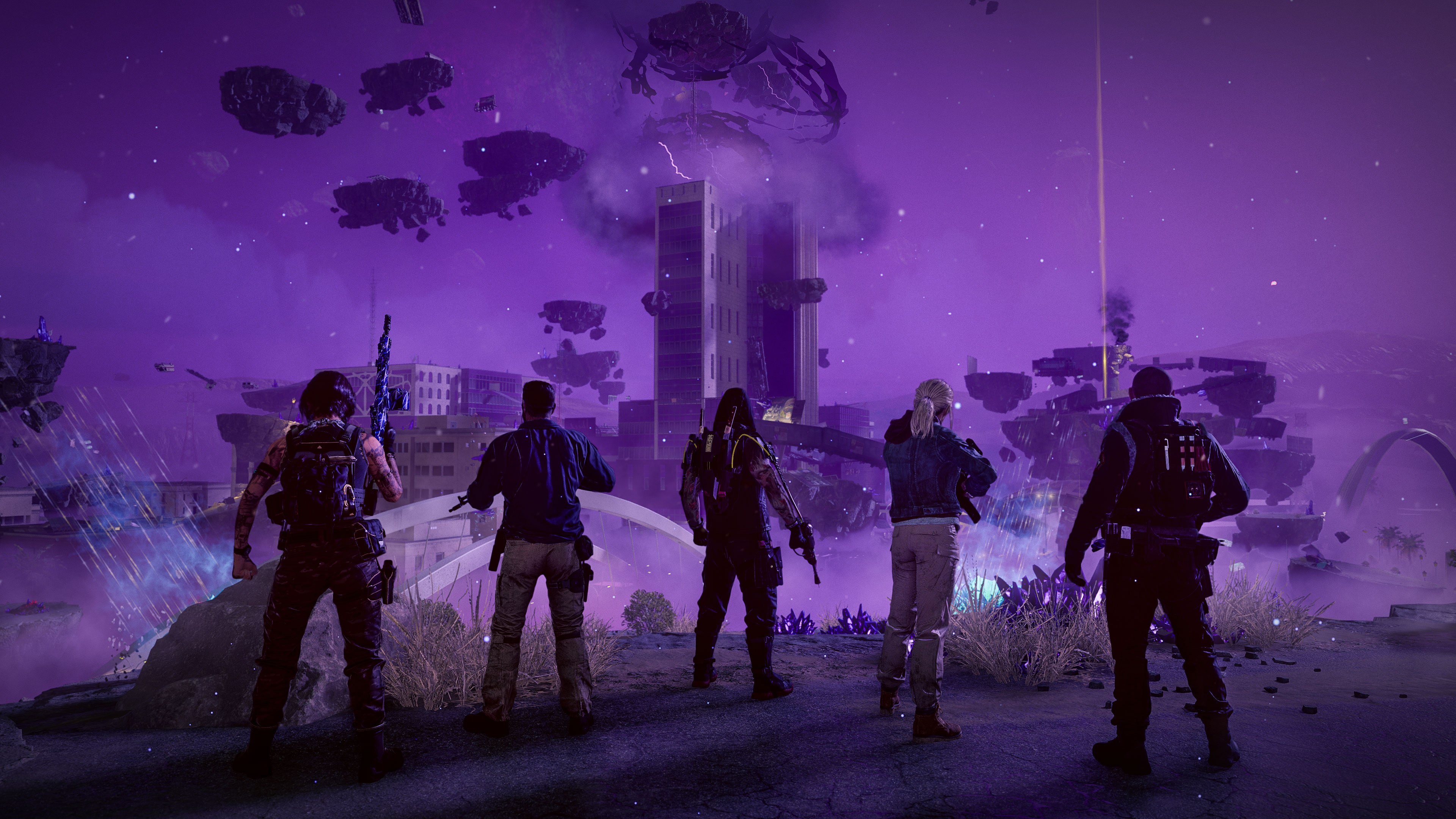 Call of Duty: Modern Warfare 3
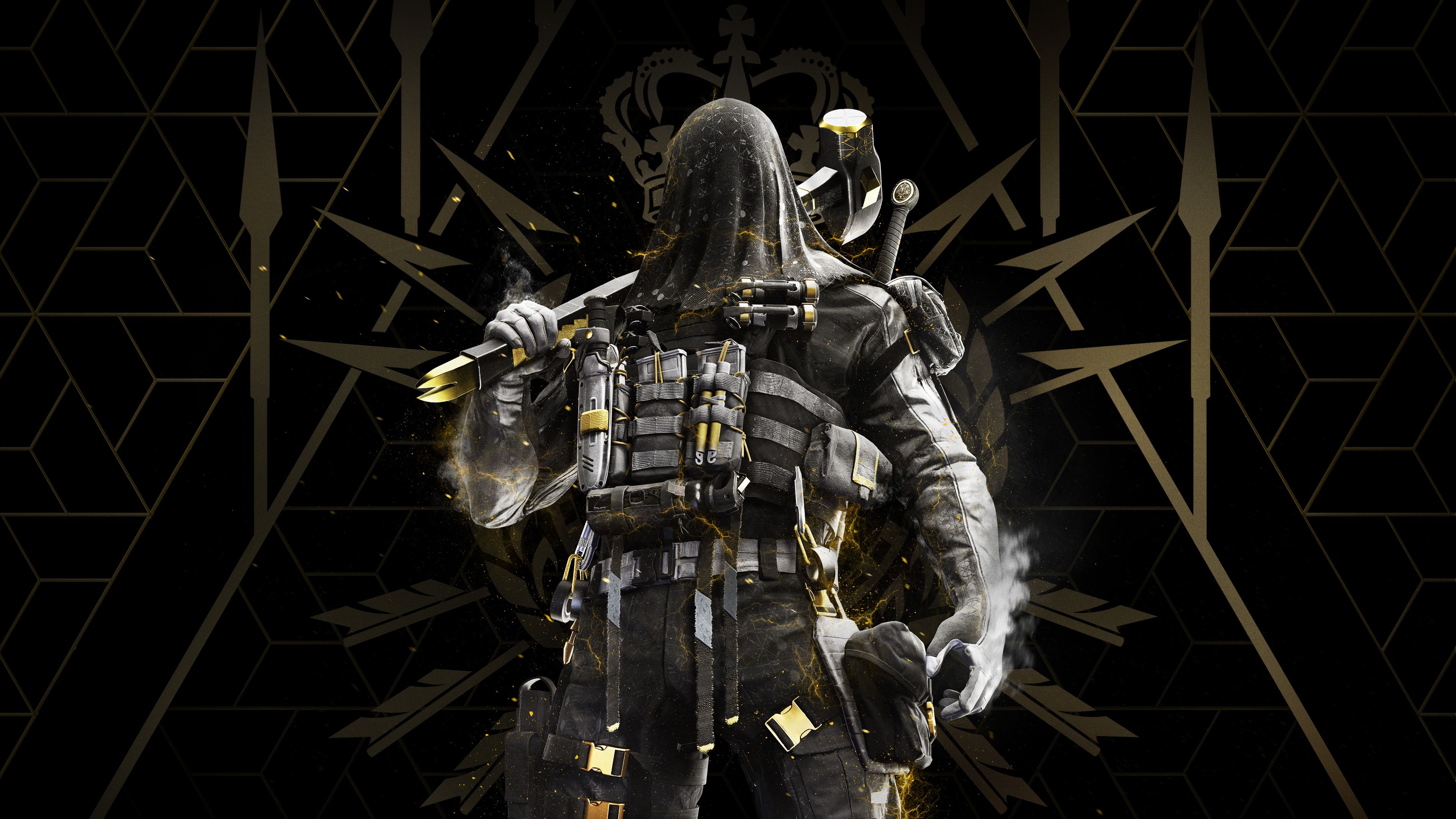 Call of Duty: Modern Warfare 3
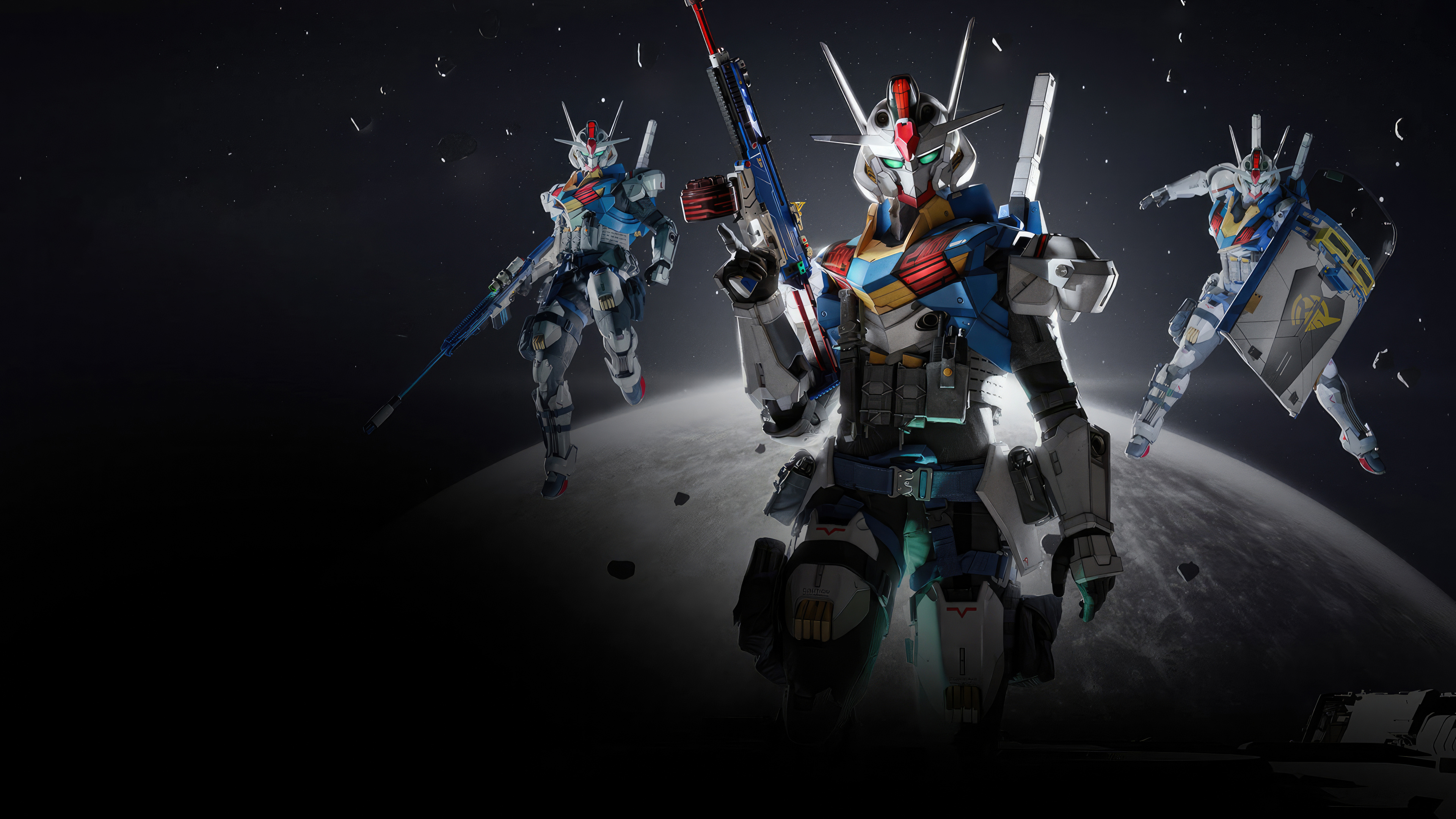 Mobile Suit Gundam
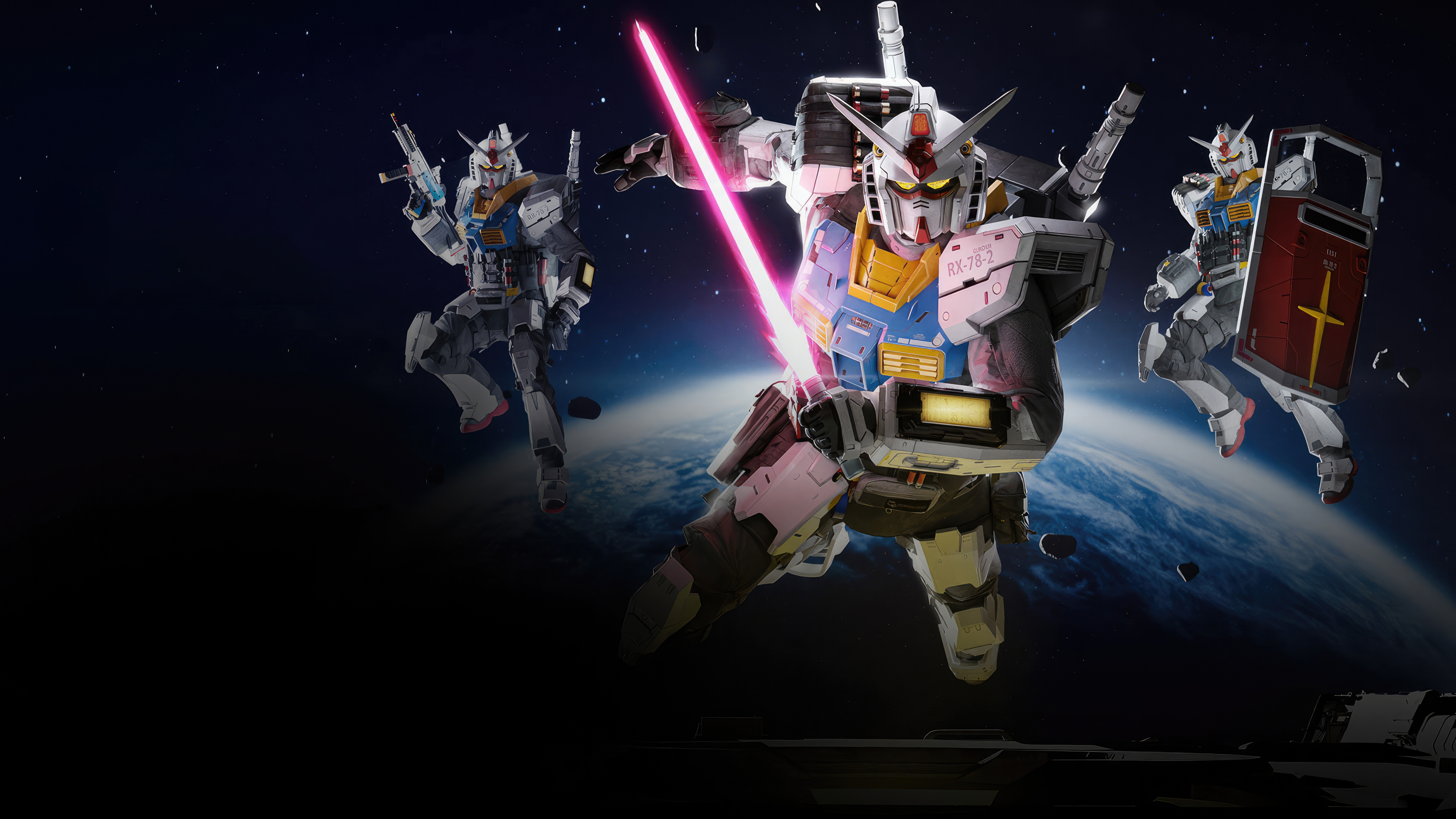 RX-78-2 Gundam
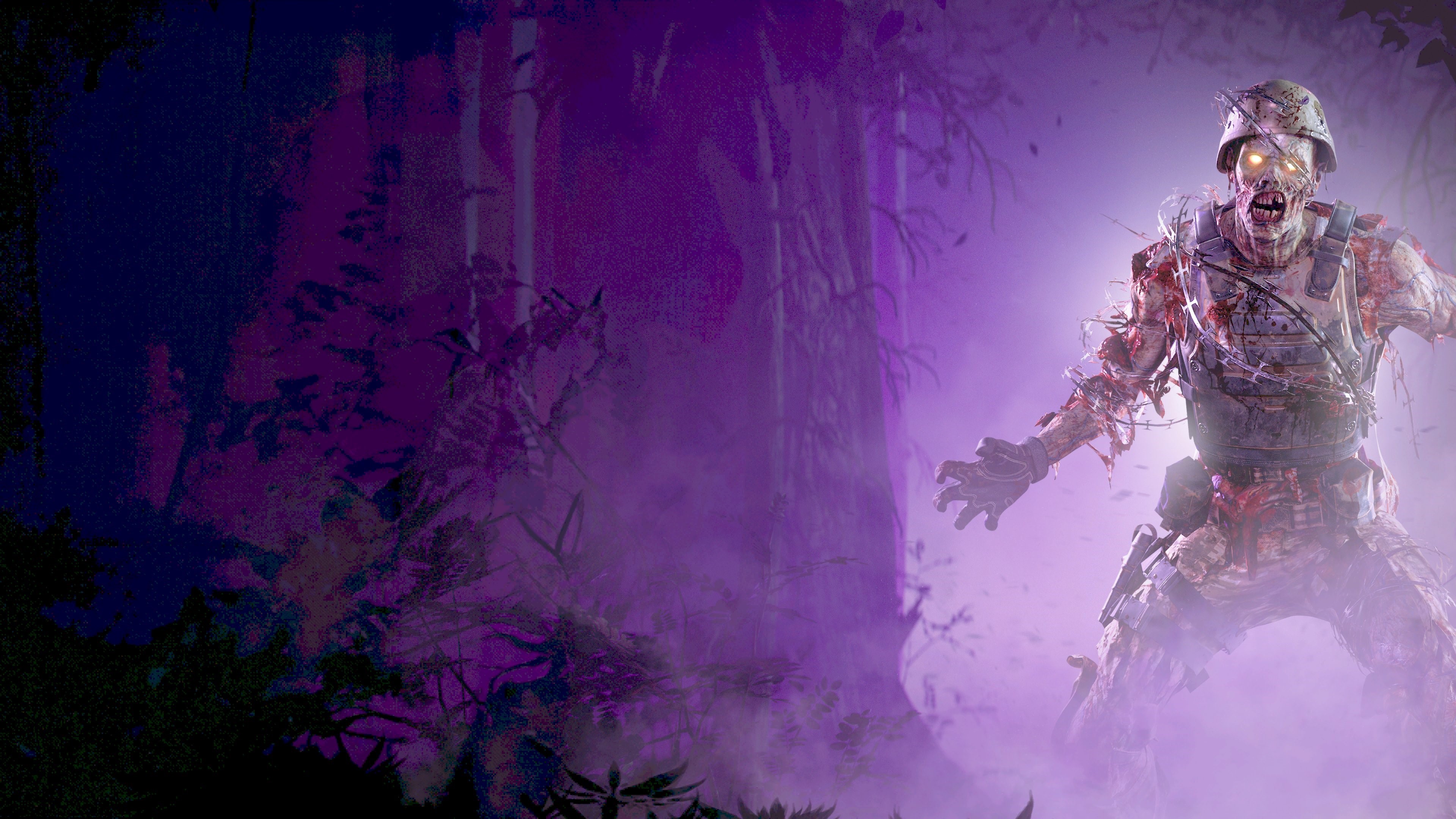 Call of Duty Warzone 2
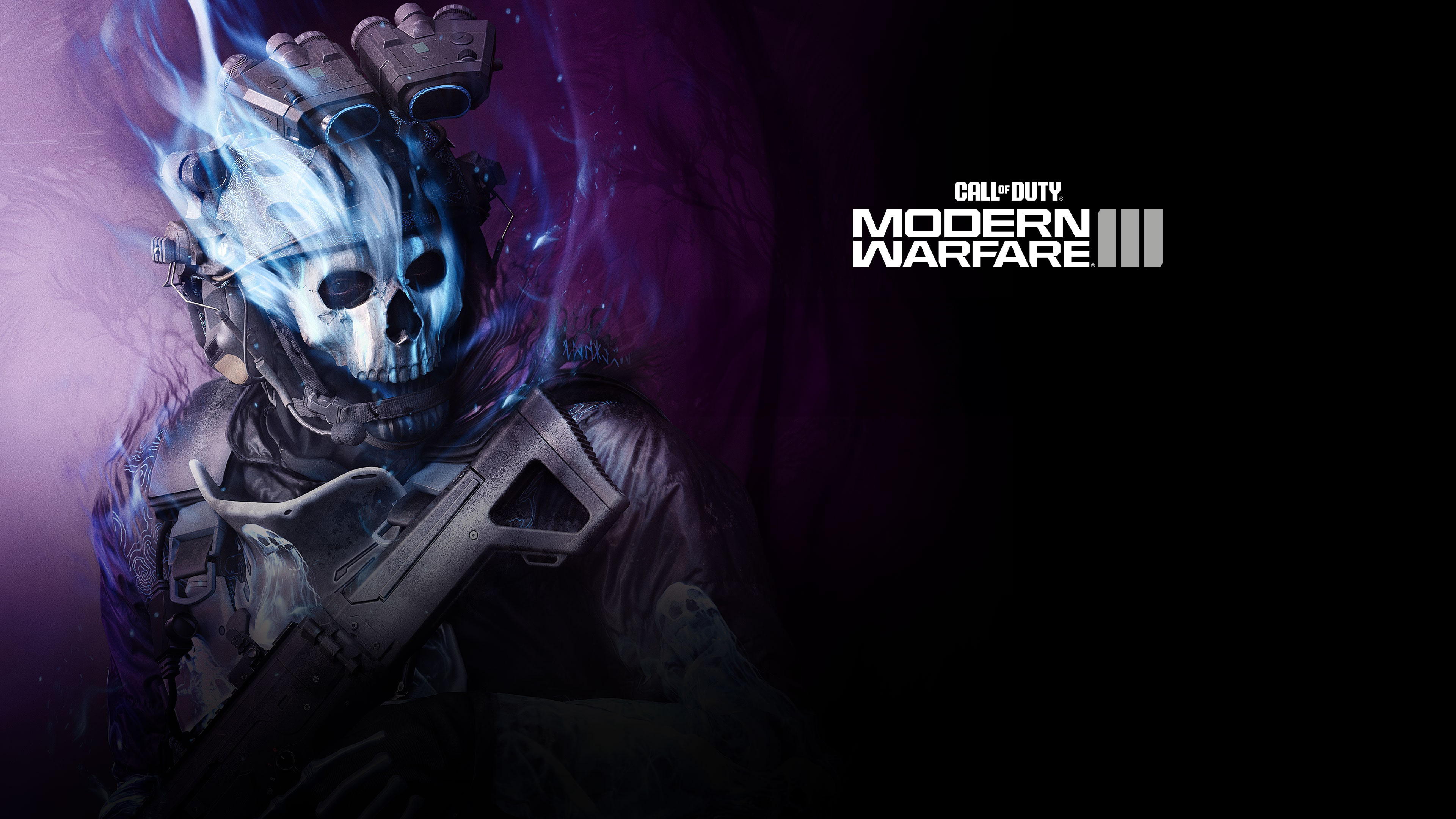 Ghost
Ghost Call of Duty: Modern Warfare 3
 Call of Duty: Modern Warfare 3
 Call of Duty: Modern Warfare 3
 Call of Duty: Modern Warfare 3
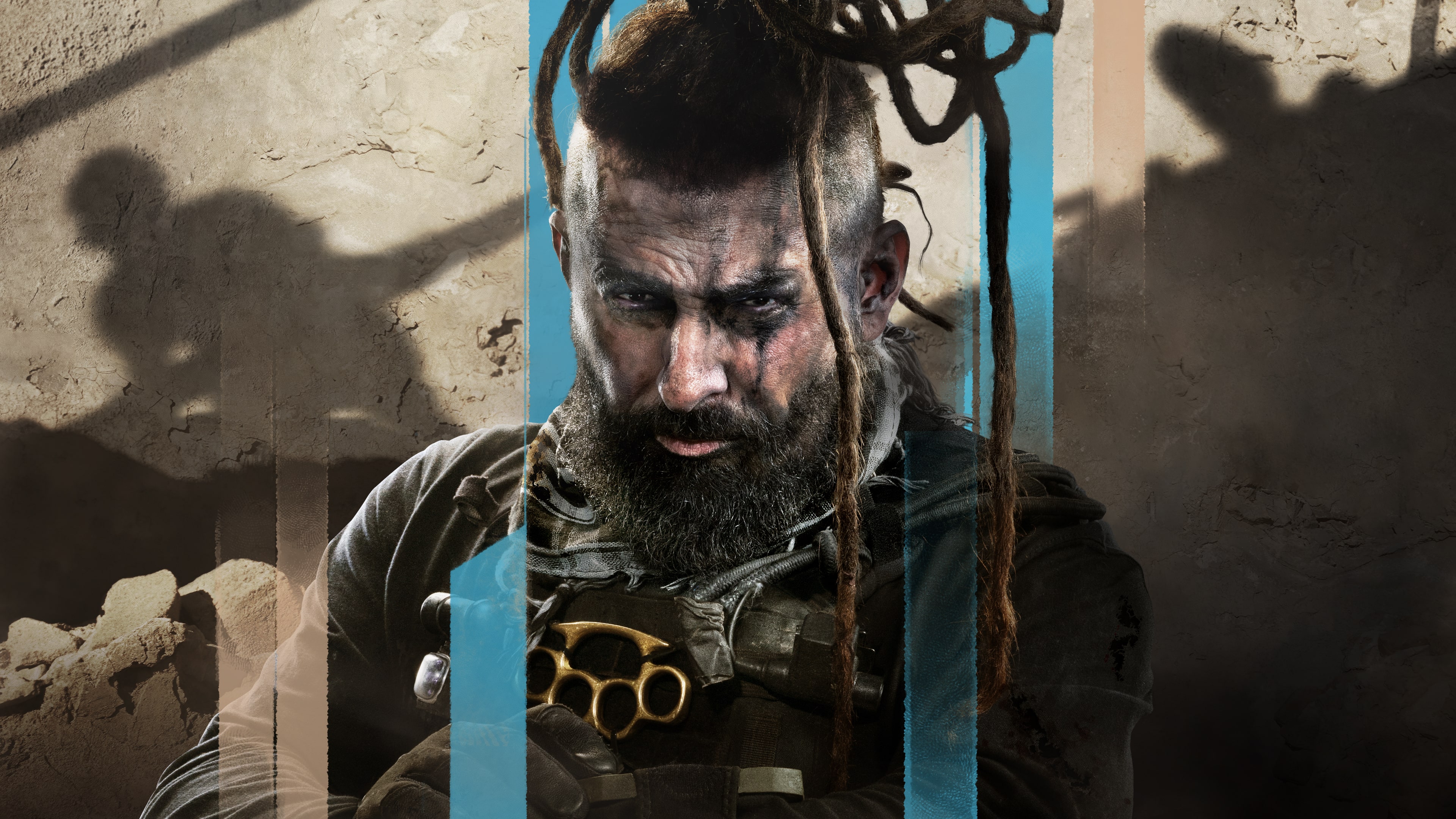 Call of Duty: Modern Warfare II
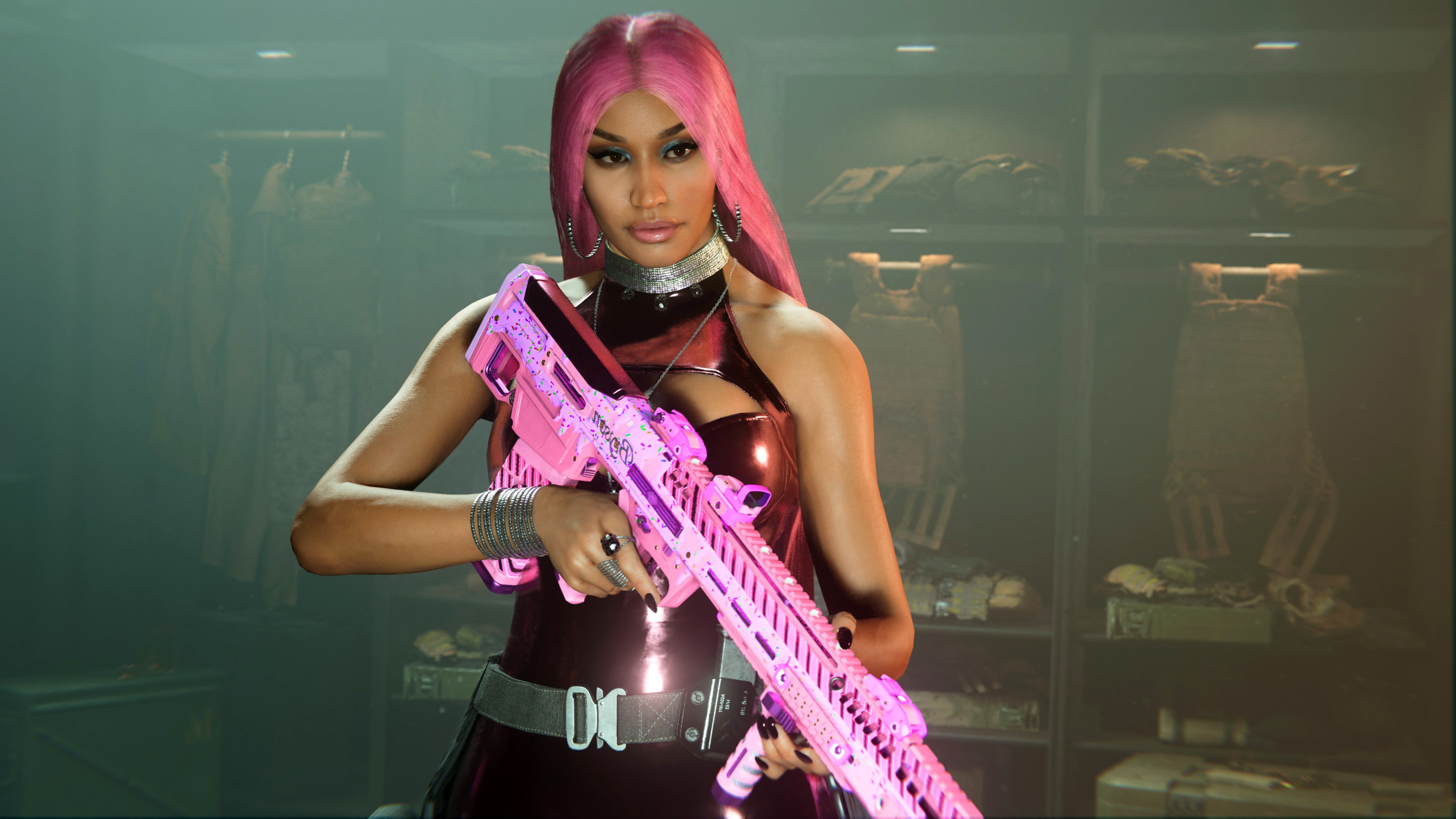 Nicki Minaj
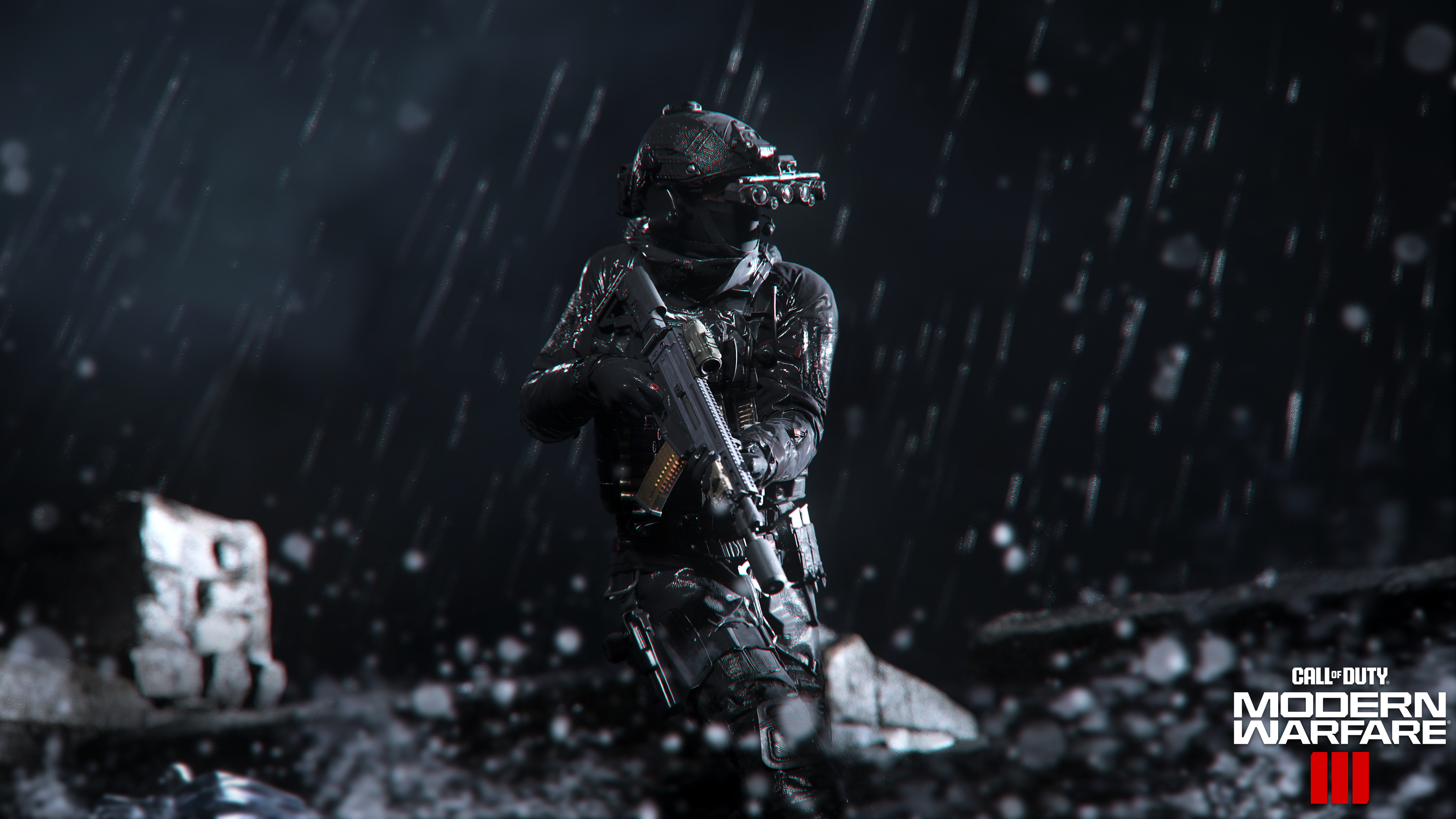 Call of Duty: Modern Warfare 3
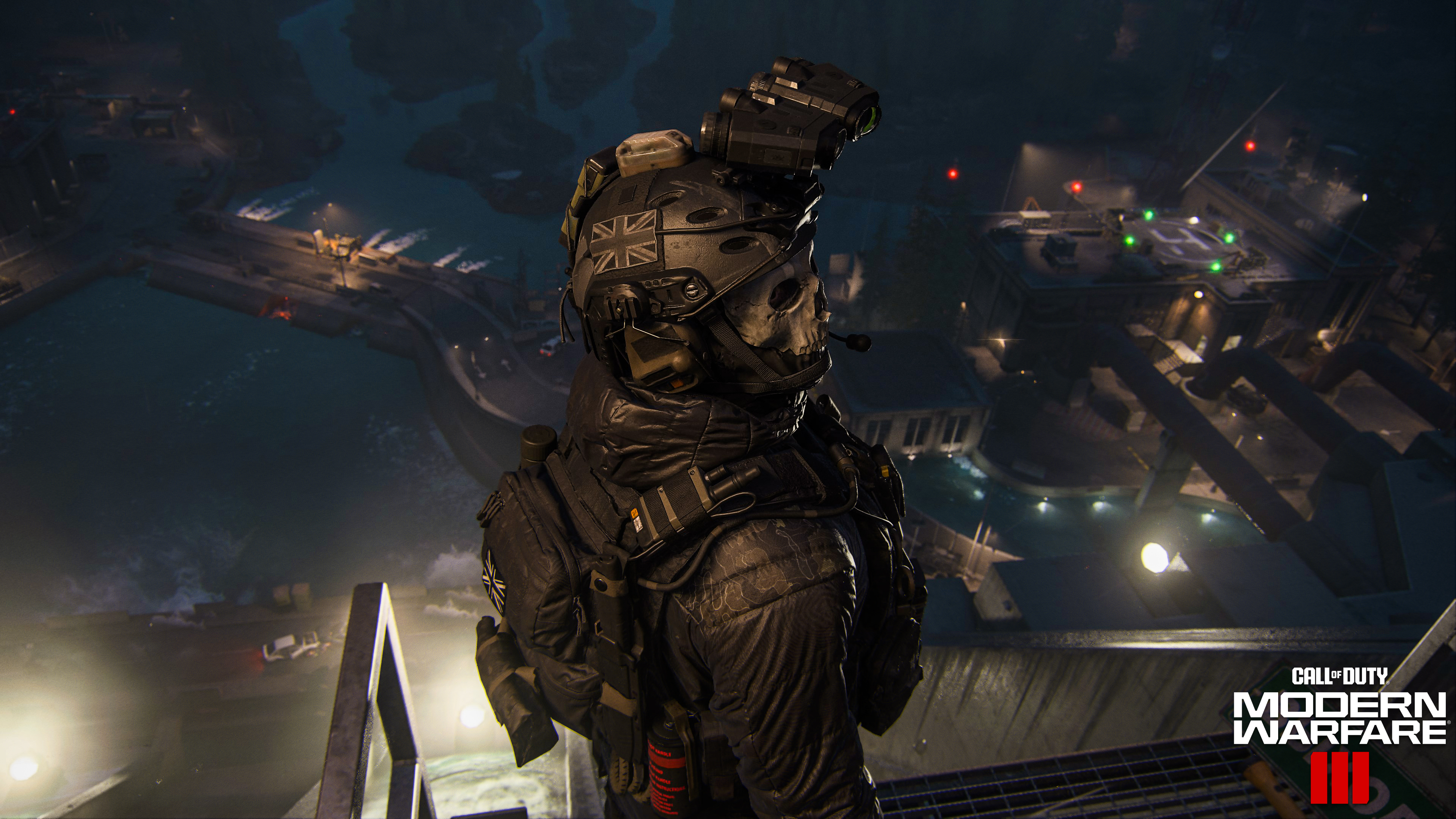 Call of Duty: Modern Warfare 3
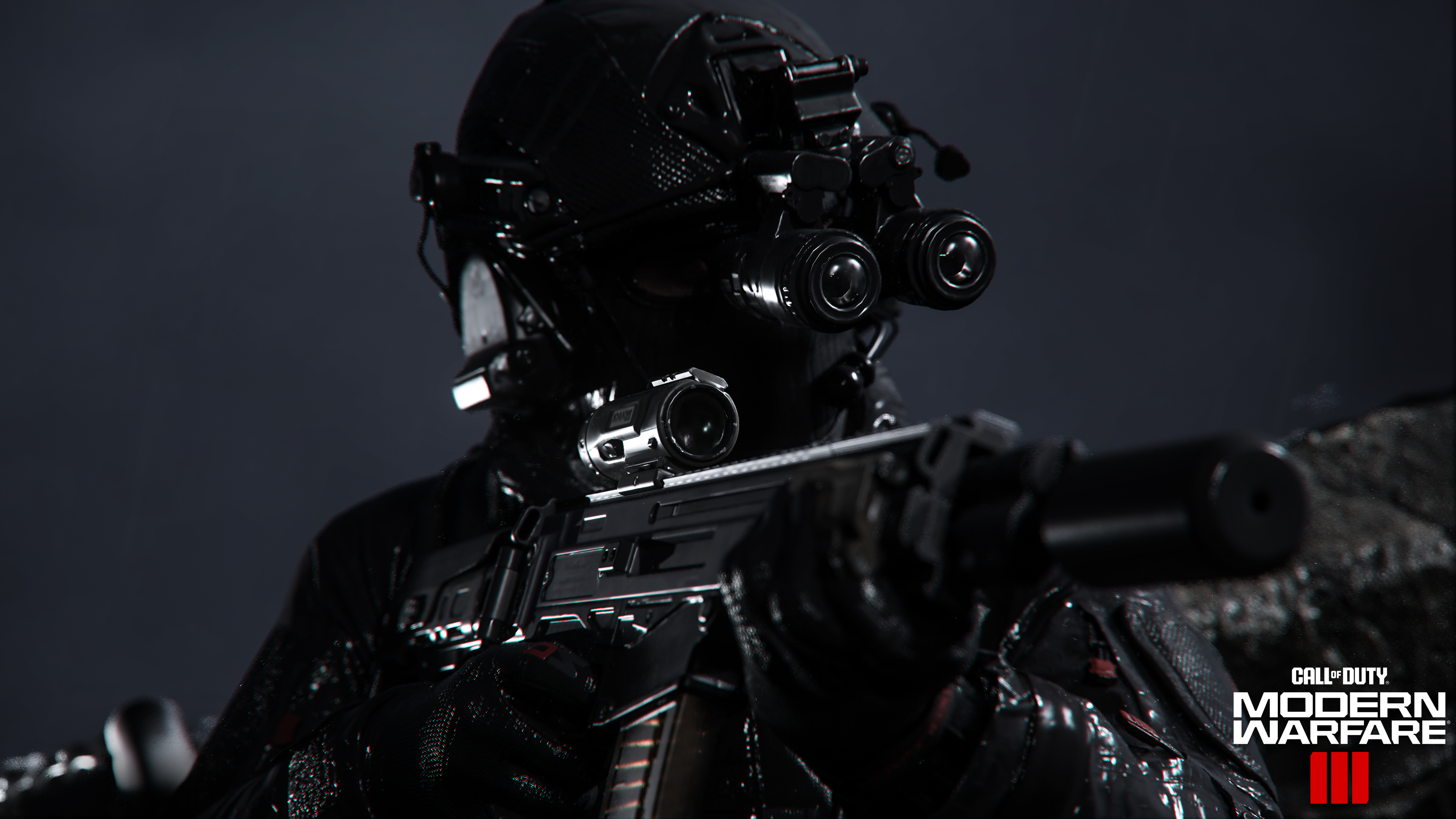 Call of Duty: Modern Warfare 3
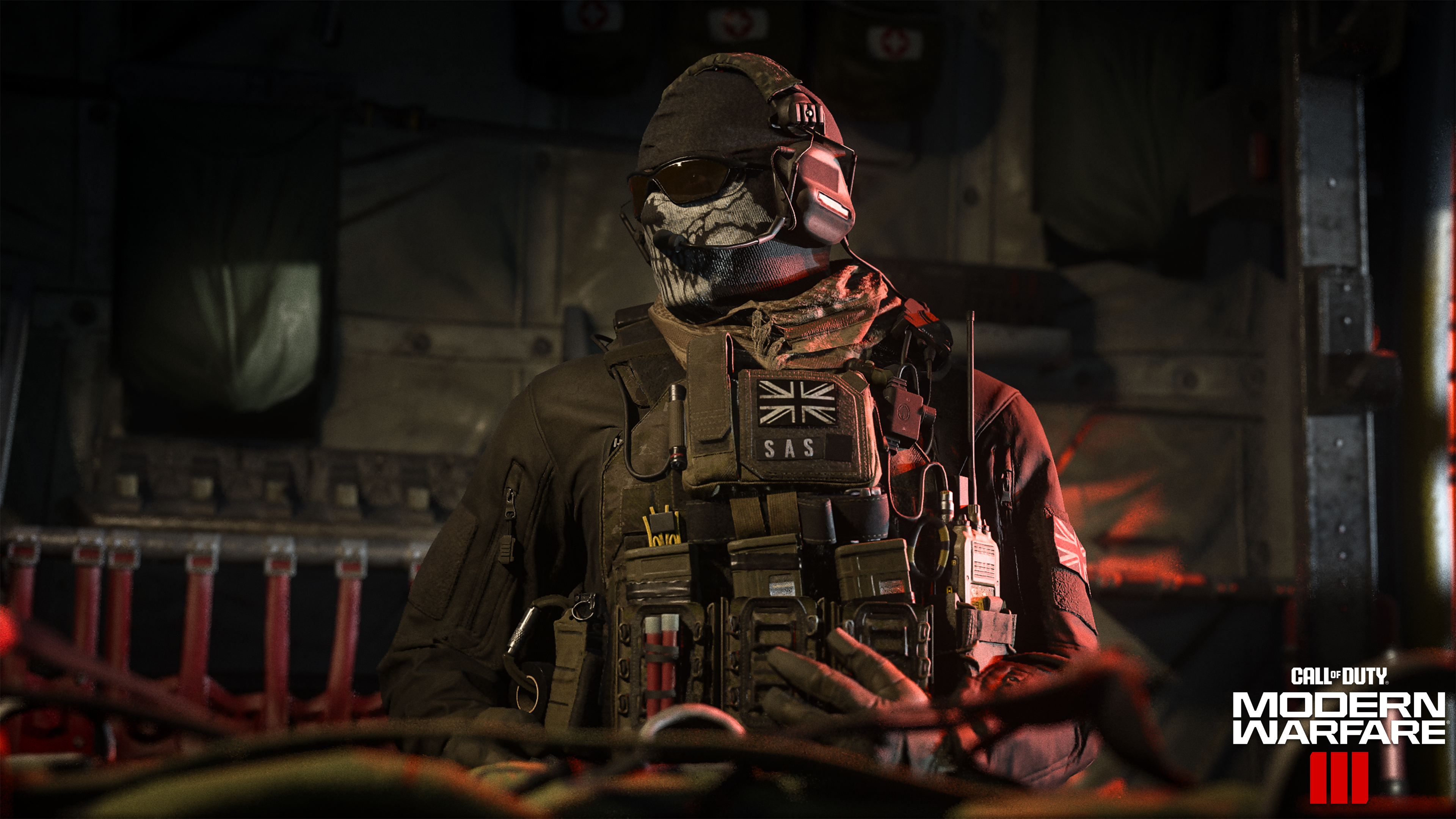 Ghost
Ghost Price
Price Price
Price Call of Duty: Modern Warfare 3
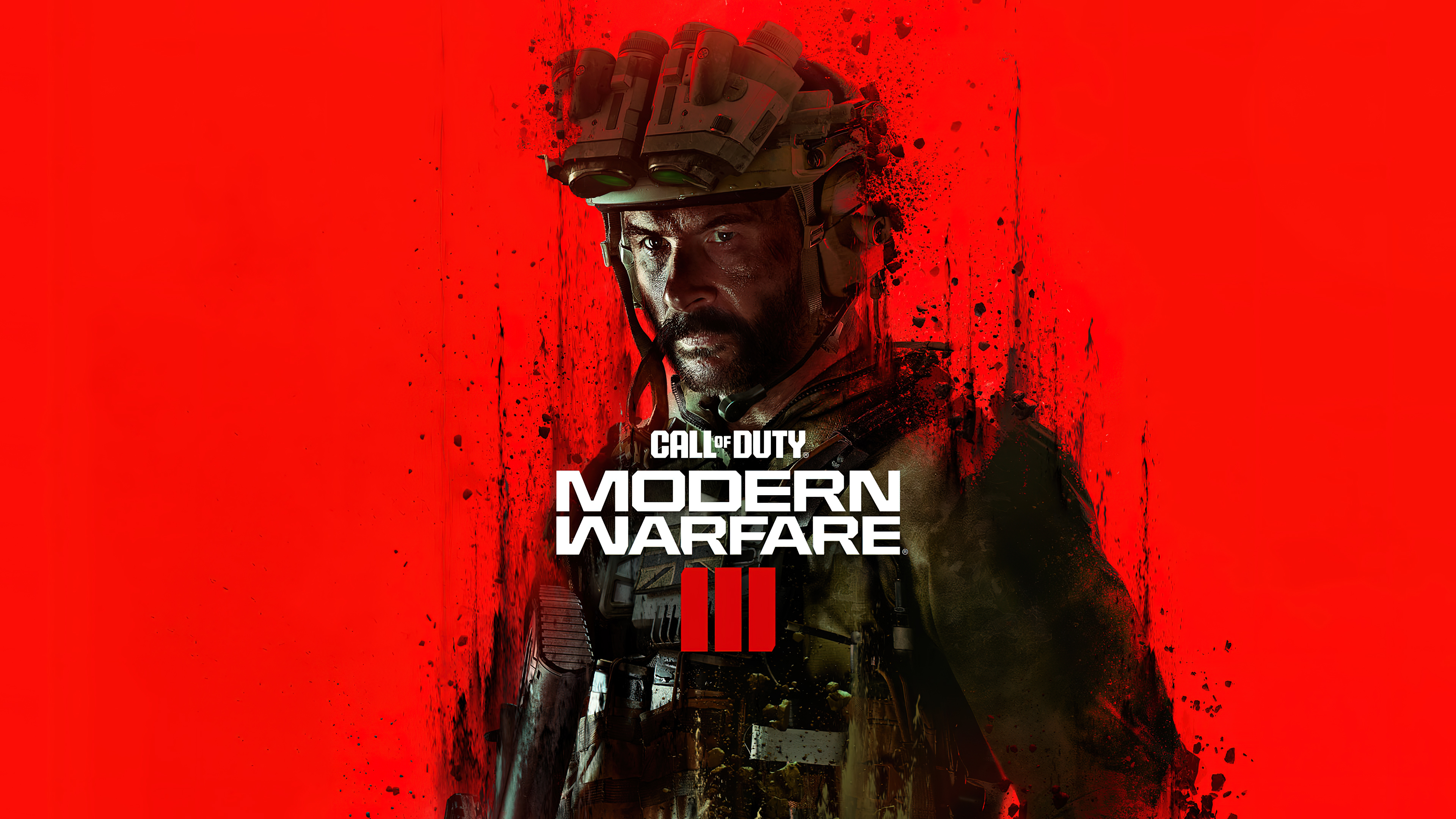 Price
Price Call of Duty: Modern Warfare 3
 Call of Duty: Modern Warfare 3
 Call of Duty: Modern Warfare 3
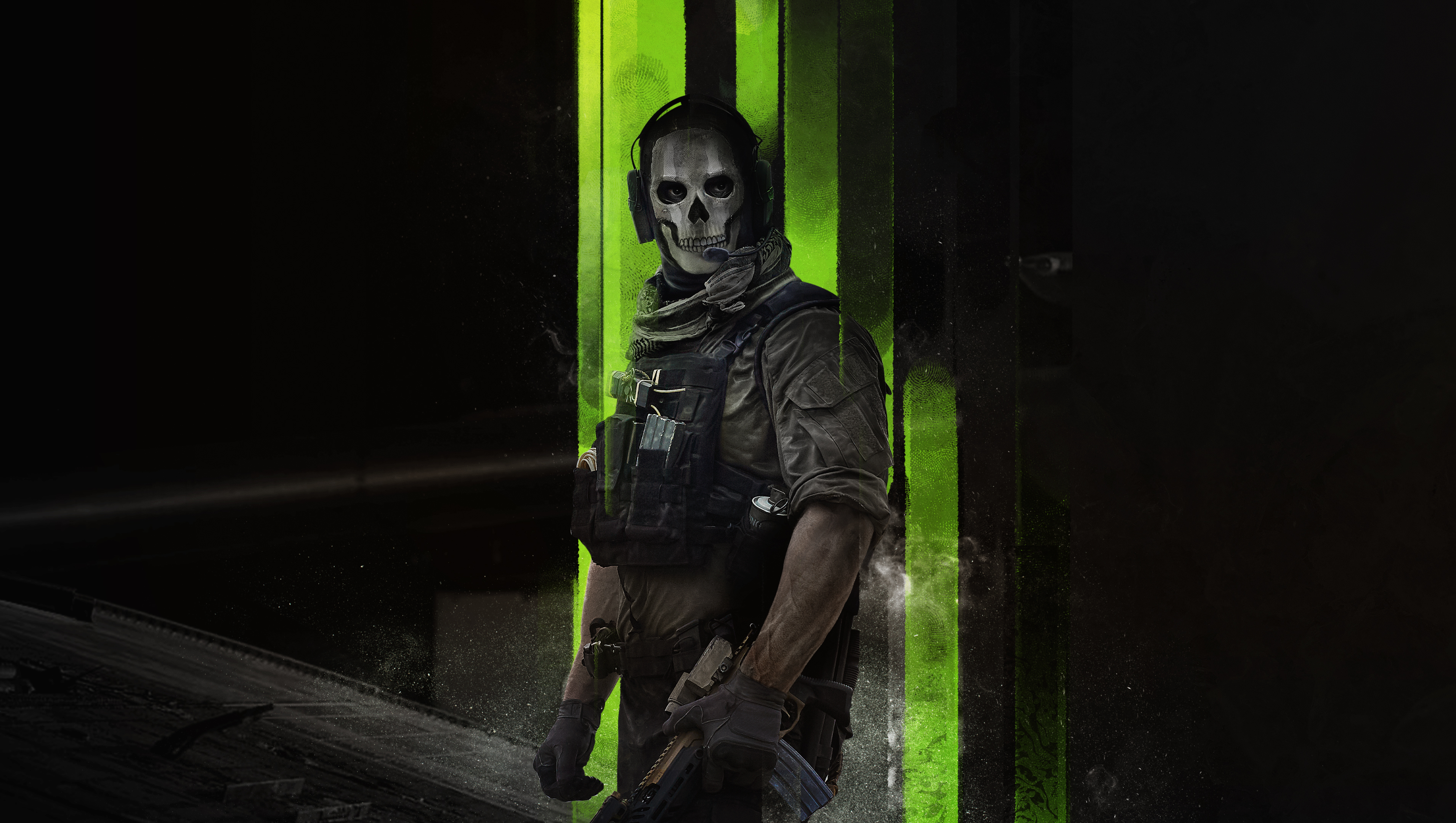 Call of Duty: Modern Warfare 2
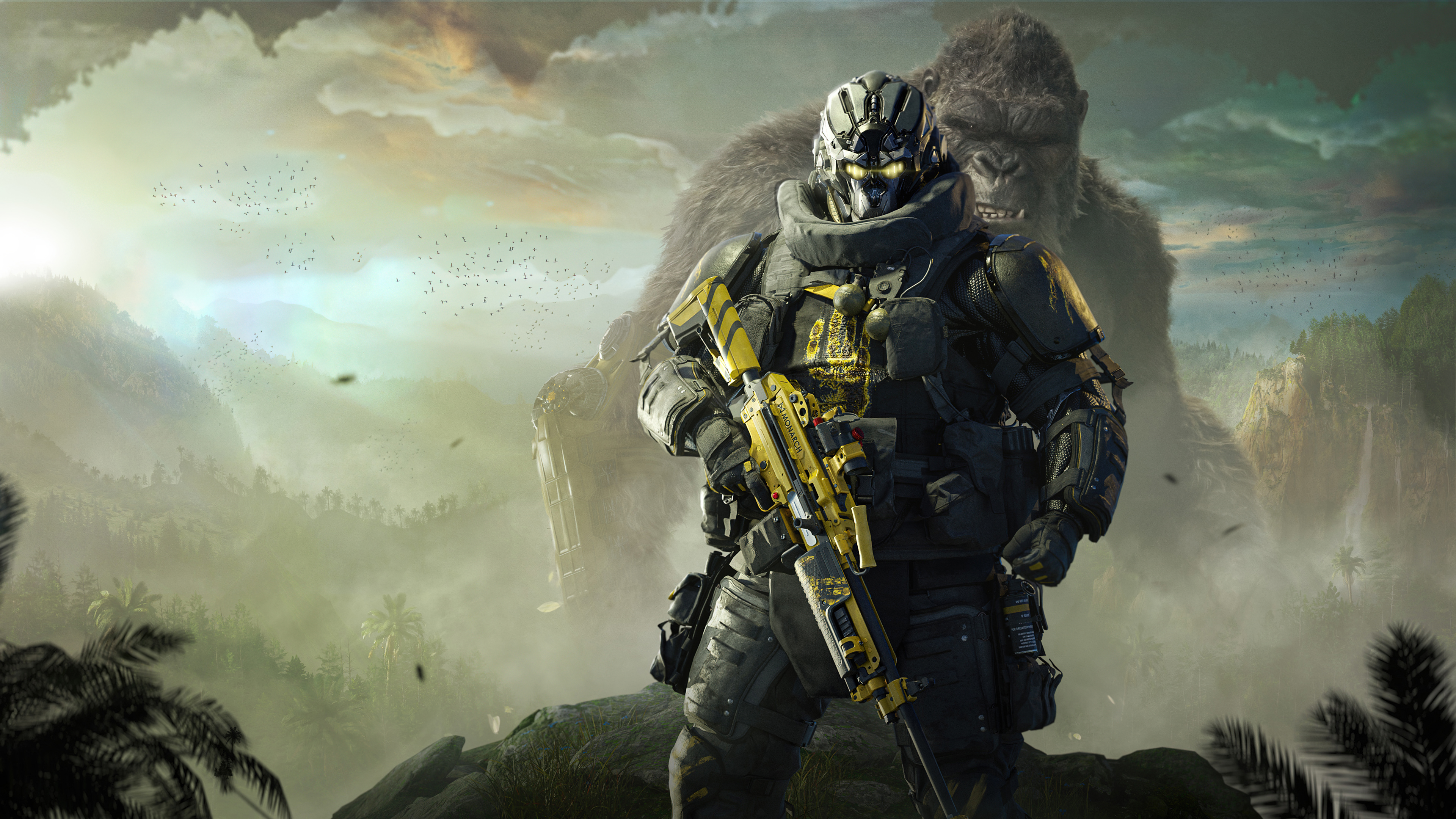 Godzilla x Kong: The New Empire
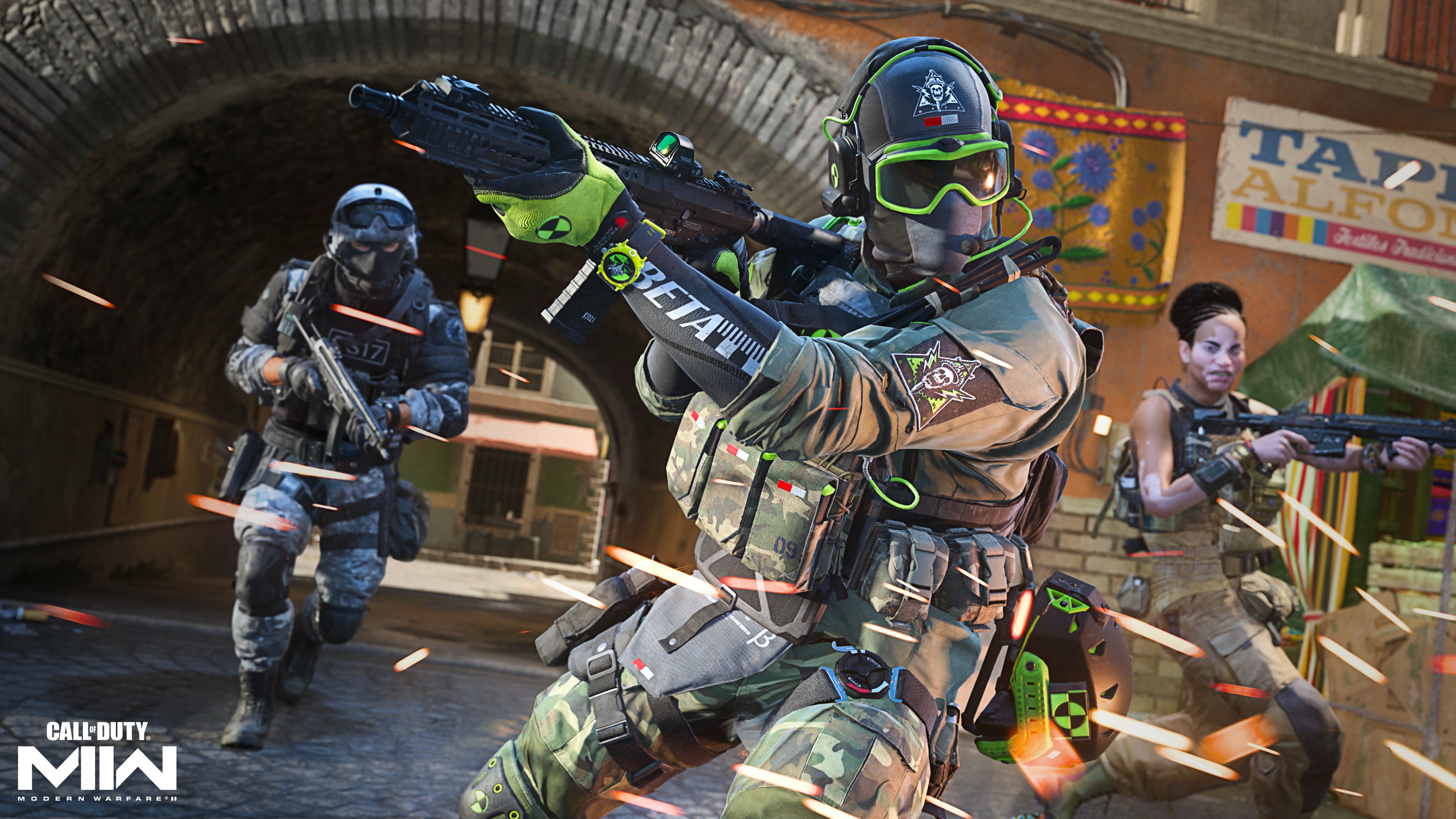 Call of Duty: Modern Warfare II
 Call of Duty: Modern Warfare 2
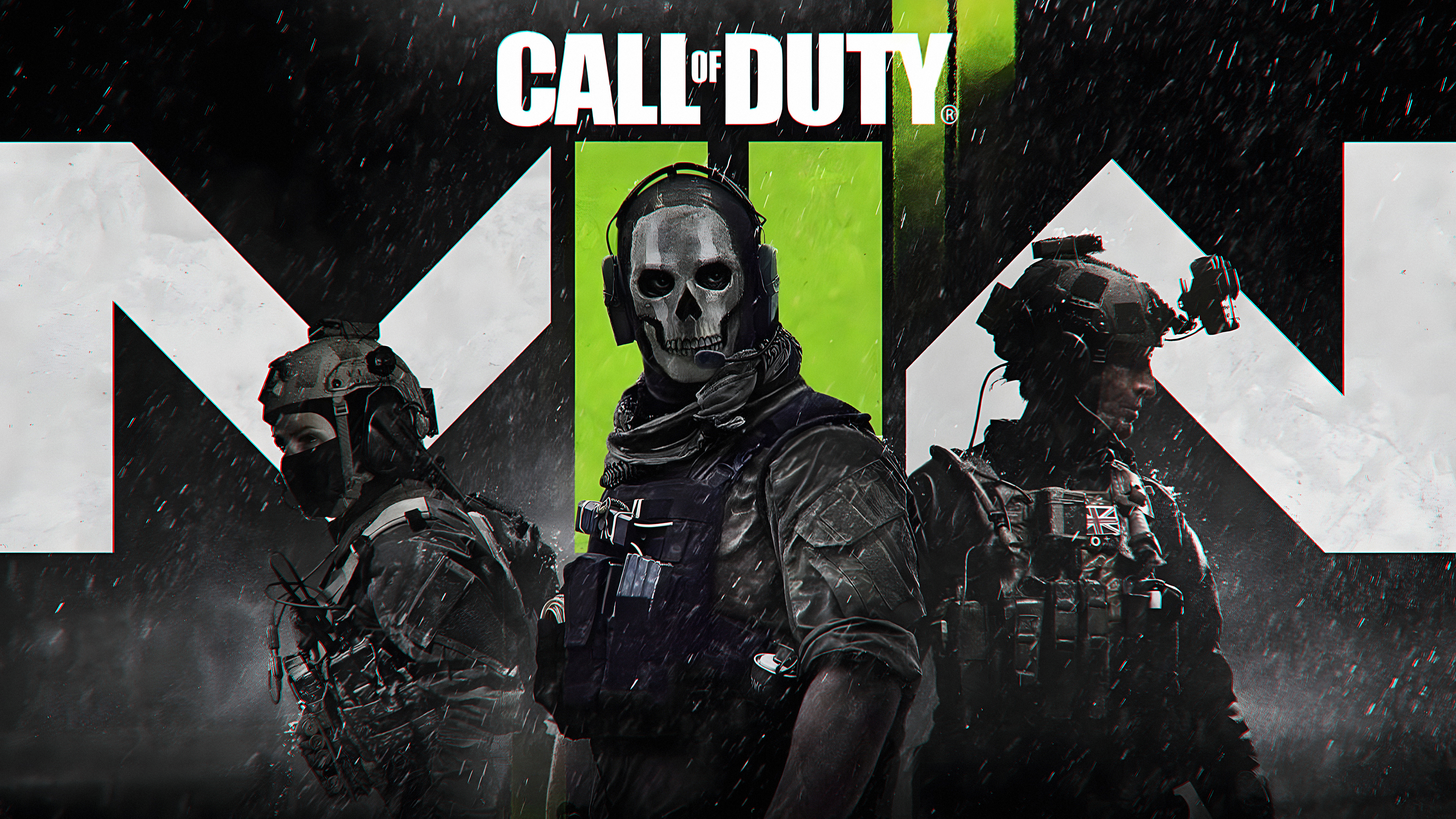 Call of Duty: Modern Warfare 2
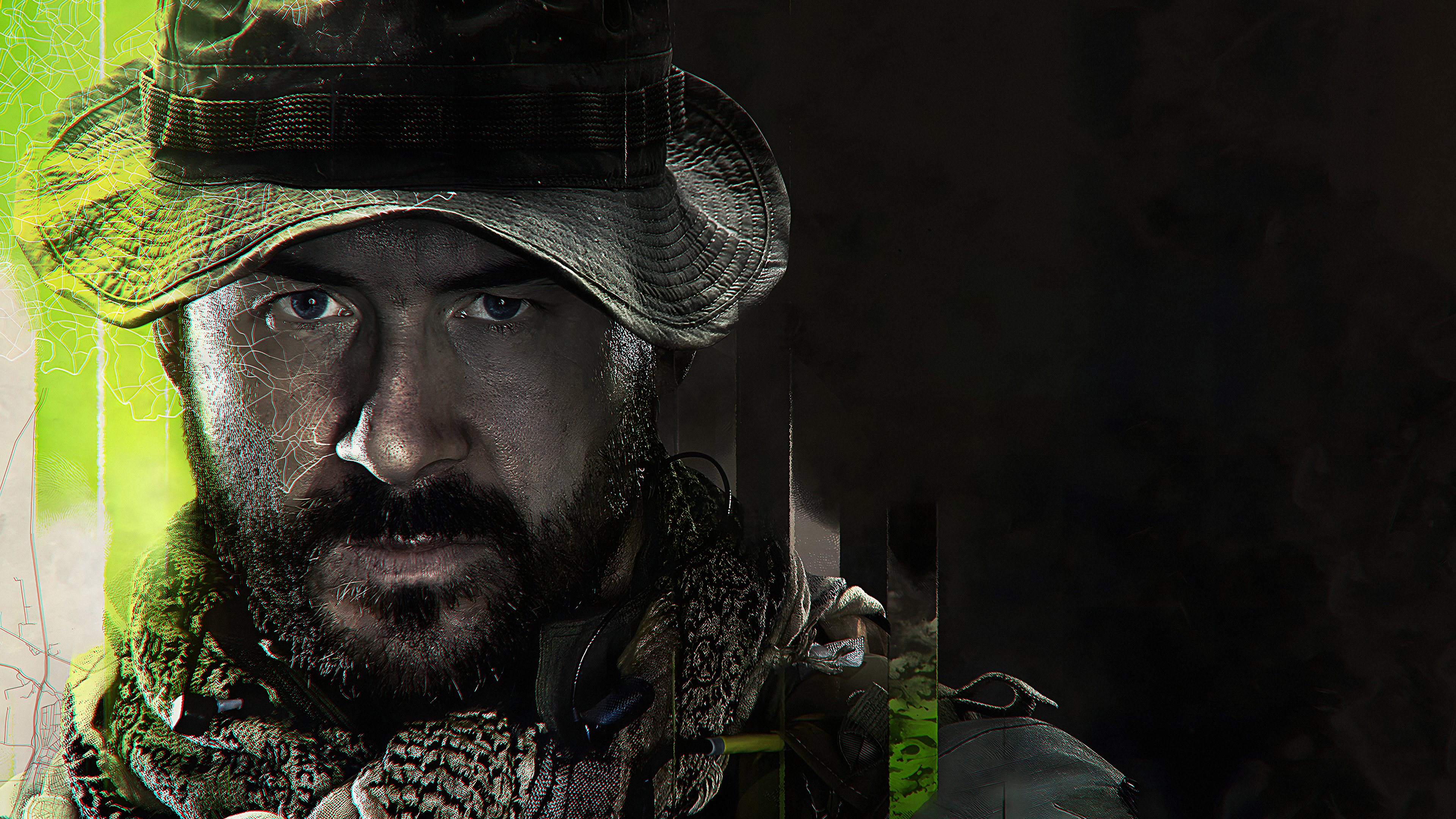 Call of Duty: Modern Warfare 2
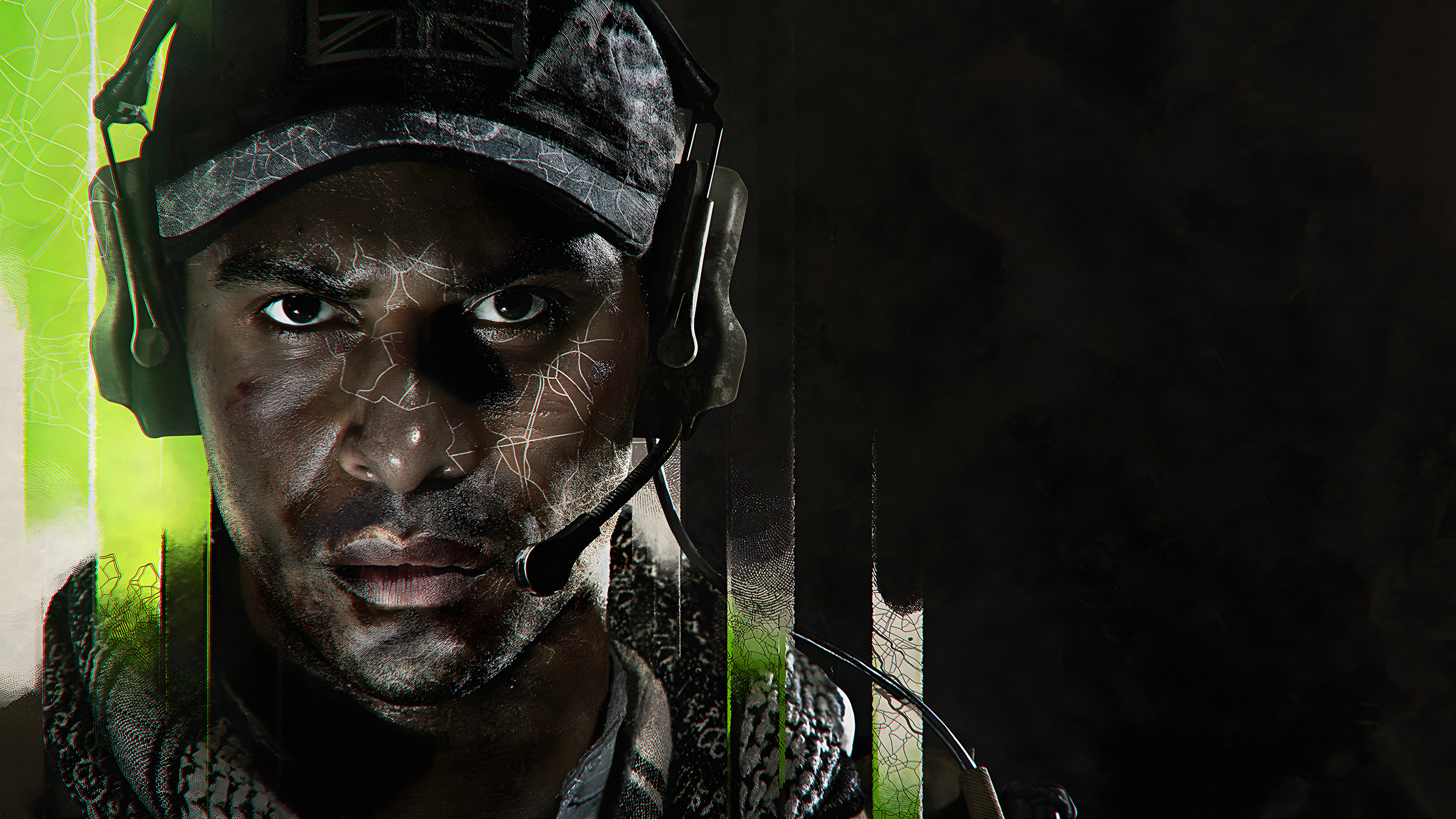 Call of Duty: Modern Warfare 2
 Call of Duty: Modern Warfare 3
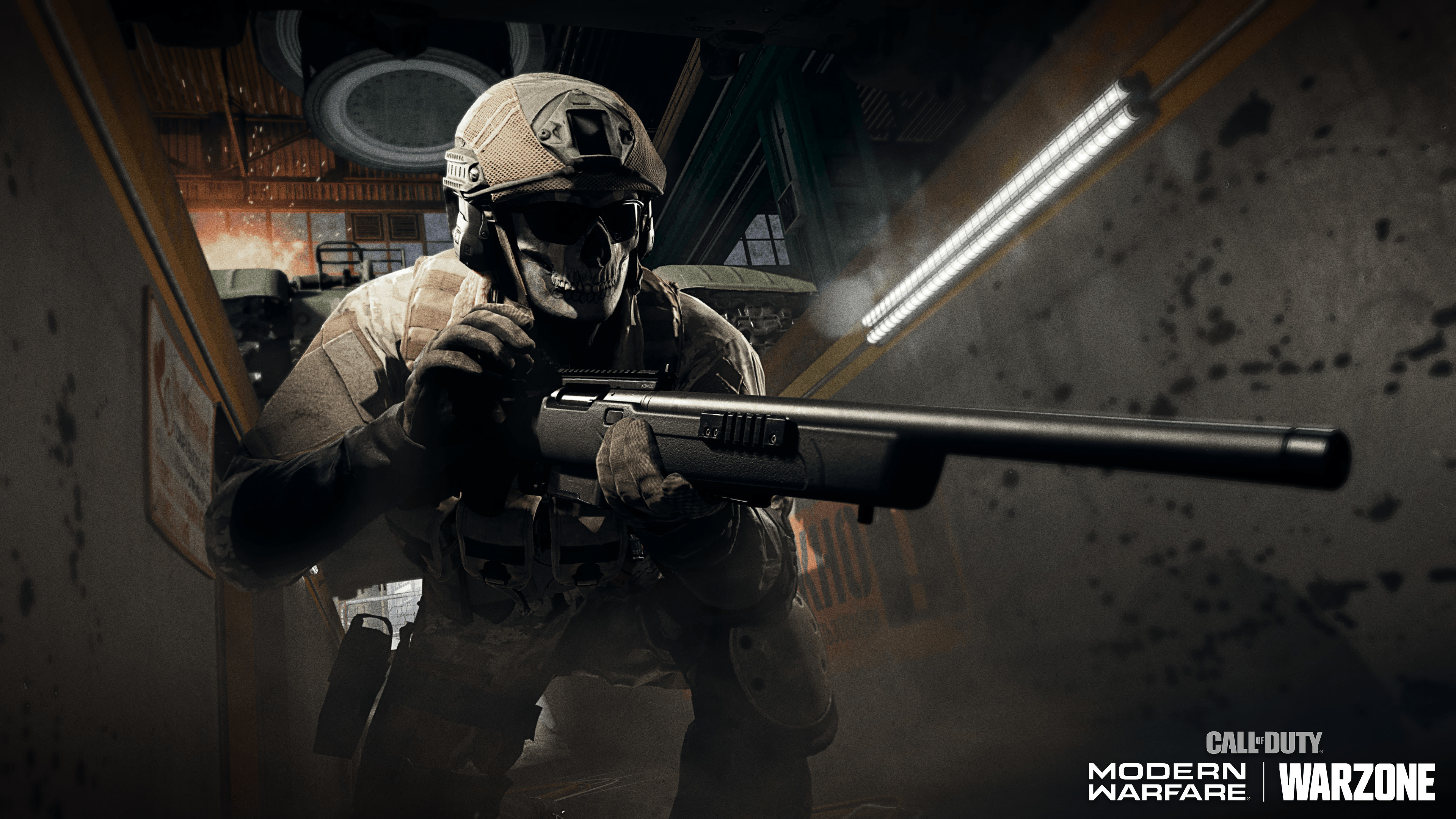 Call of Duty: Modern Warfare
Das könnte dir gefallen
 Warzone20 Bilder
 Call of Duty37 Bilder
 Multiplayer27 Bilder
 Gameplay35 Bilder
 Online-Spiele38 Bilder
 Android-Spiele36 Bilder
 Doom15 Bilder
 World of Tanks7 Bilder
 Battlefield41 Bilder
 Spiele 202647 Bilder
 Halo36 Bilder
 PlayStation 436 Bilder
 Nintendo Switch36 Bilder
 Game Art40 Bilder
 Lego16 Bilder
 Xbox-Spiele15 Bilder
 Zombies6 Bilder
 Destiny26 Bilder
 Sonic24 Bilder
 DLC24 Bilder
 Fortnite36 Bilder
 Watch Dogs13 Bilder
 Rainbow Six Siege22 Bilder
 Xbox 36010 Bilder
 PlayStation46 Bilder
 Lords of the Fallen15 Bilder
 God of War26 Bilder
 Zahnräder16 Bilder
 Warhammer 40K36 Bilder
 PUBG for Mobile47 Bilder
So richtest du das Hintergrundbild auf deinem Gerät ein
Das passende Bild gefunden? Lade es über den Download-Button herunter und folge den Schritten unten — in wenigen Sekunden erledigt, am Computer wie am Smartphone.
Windows
- Klicke auf Download — das Bild landet im Ordner „Downloads“
- Rechtsklick auf die heruntergeladene Datei und „Als Desktophintergrund festlegen“ wählen
- Mehrere Monitore? Unter Einstellungen → Personalisierung → Hintergrund legst du fest, wo das Bild erscheint
macOS
- Klicke auf Download, um das Bild auf dem Mac zu speichern
- Öffne Systemeinstellungen → Hintergrundbild
- Klicke auf „Foto hinzufügen“, wähle das Bild aus und nimm „Bildschirm ausfüllen“
iPhone / iPad
- Tippe auf Download und dann auf „In Fotos sichern“
- Öffne die Fotos-App und wähle das gespeicherte Bild
- Tippe auf Teilen → „Als Hintergrund verwenden“, passe den Ausschnitt an und bestätige mit „Festlegen“
Android
- Tippe auf Download — das Bild wird in der Galerie gespeichert
- Öffne die Galerie (oder Google Fotos) und wähle das Bild aus
- Wähle im Menü „Als Hintergrund festlegen“ und entscheide: Startbildschirm, Sperrbildschirm oder beides