Gameplay-Hintergrundbilder
 Ace Combat 8: Wings of Theve
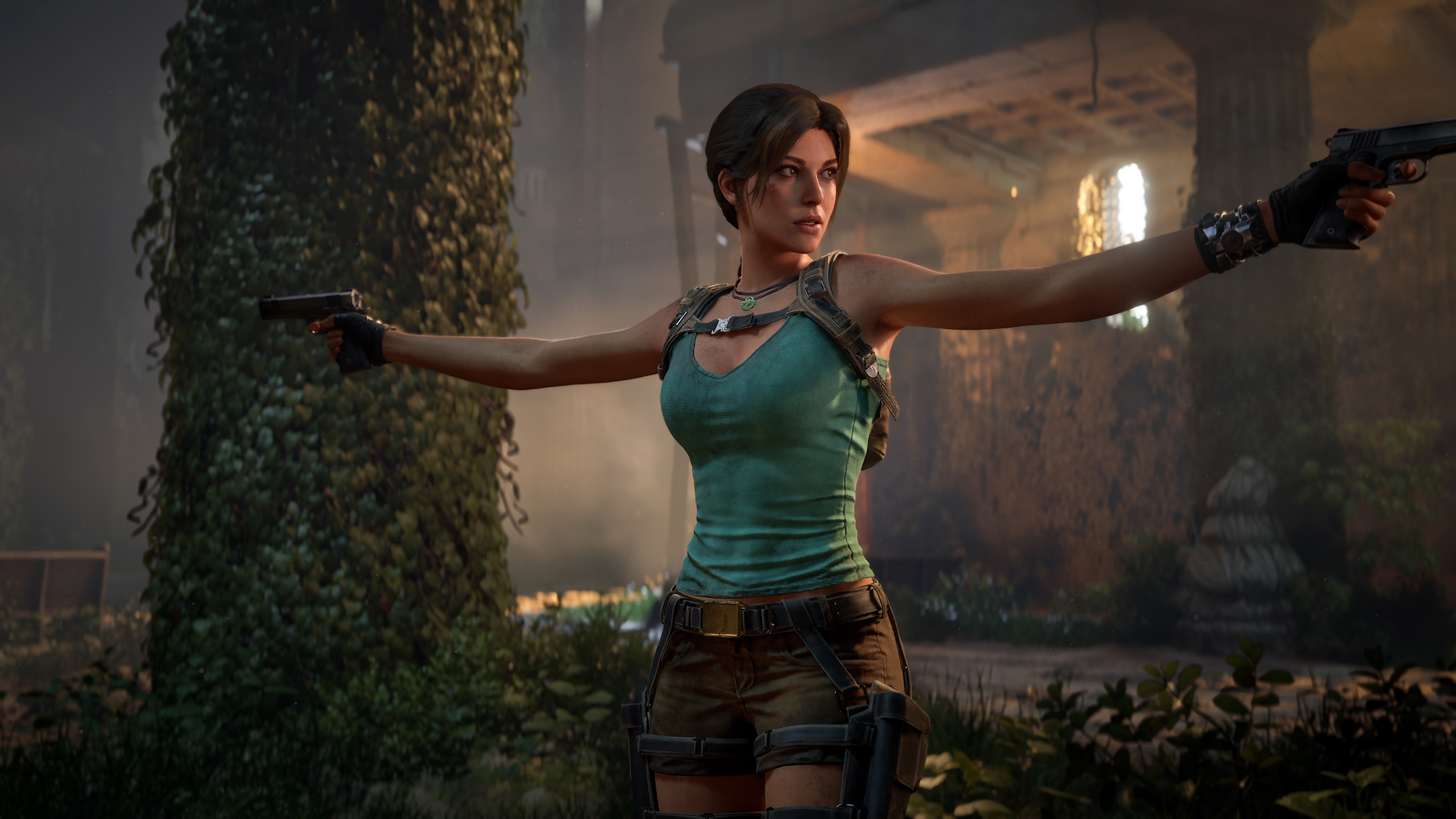 Tomb Raider: Legacy of Atlantis
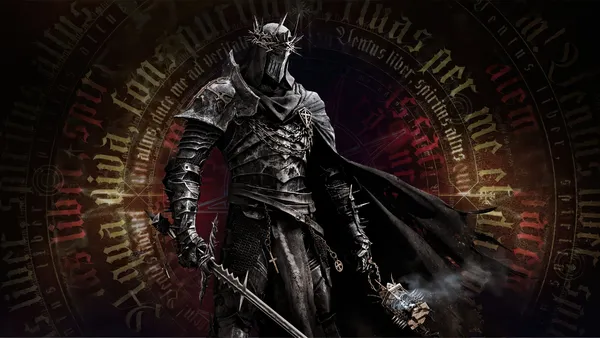
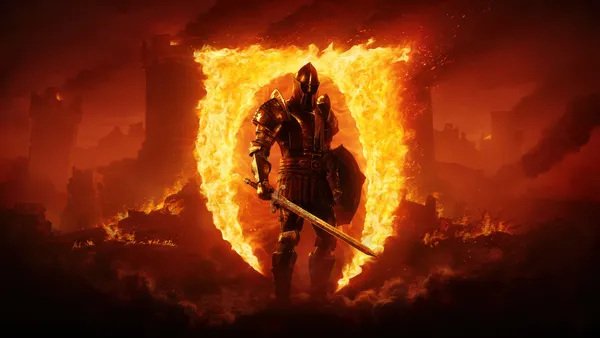
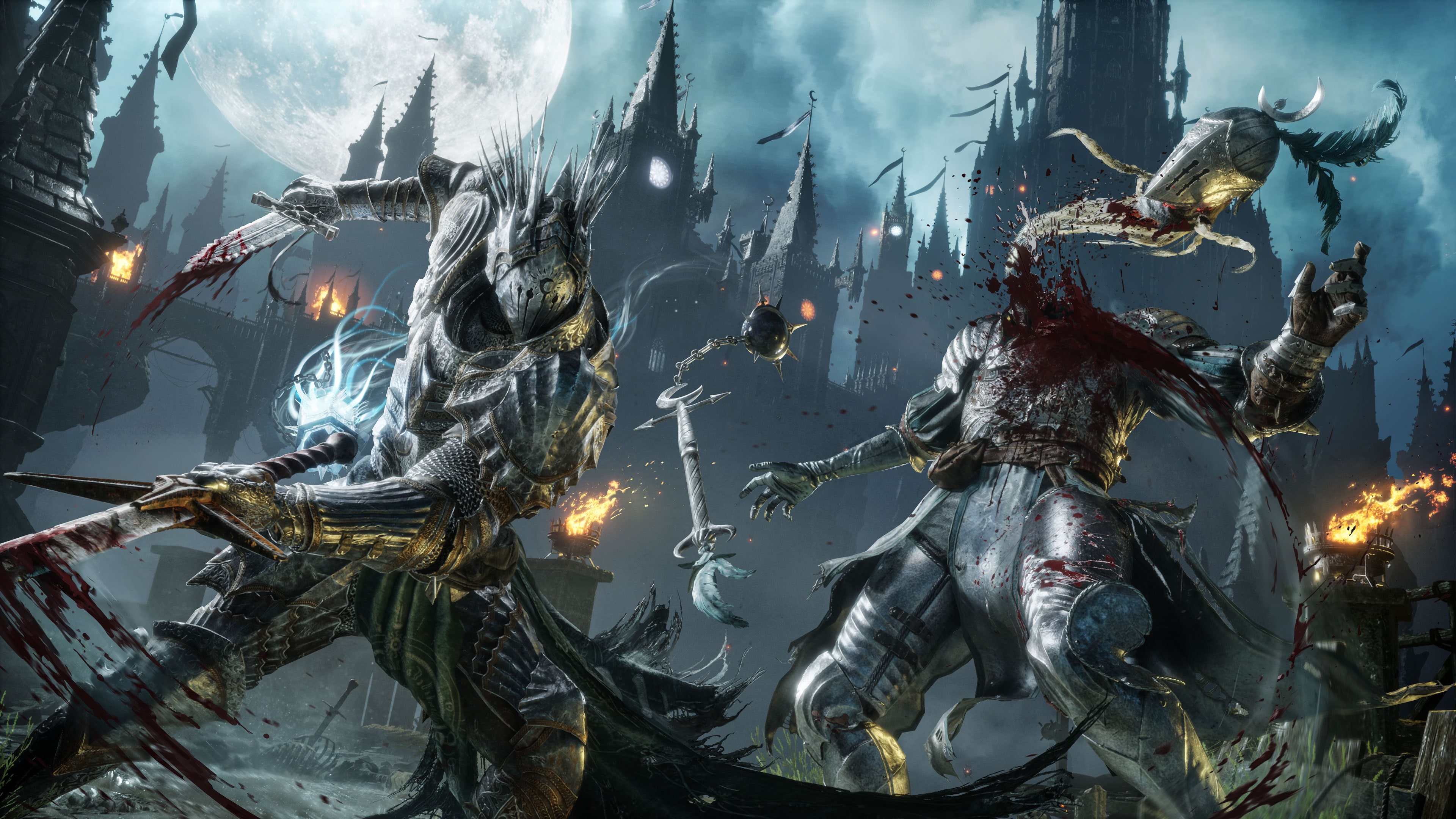 Lords of the Fallen II
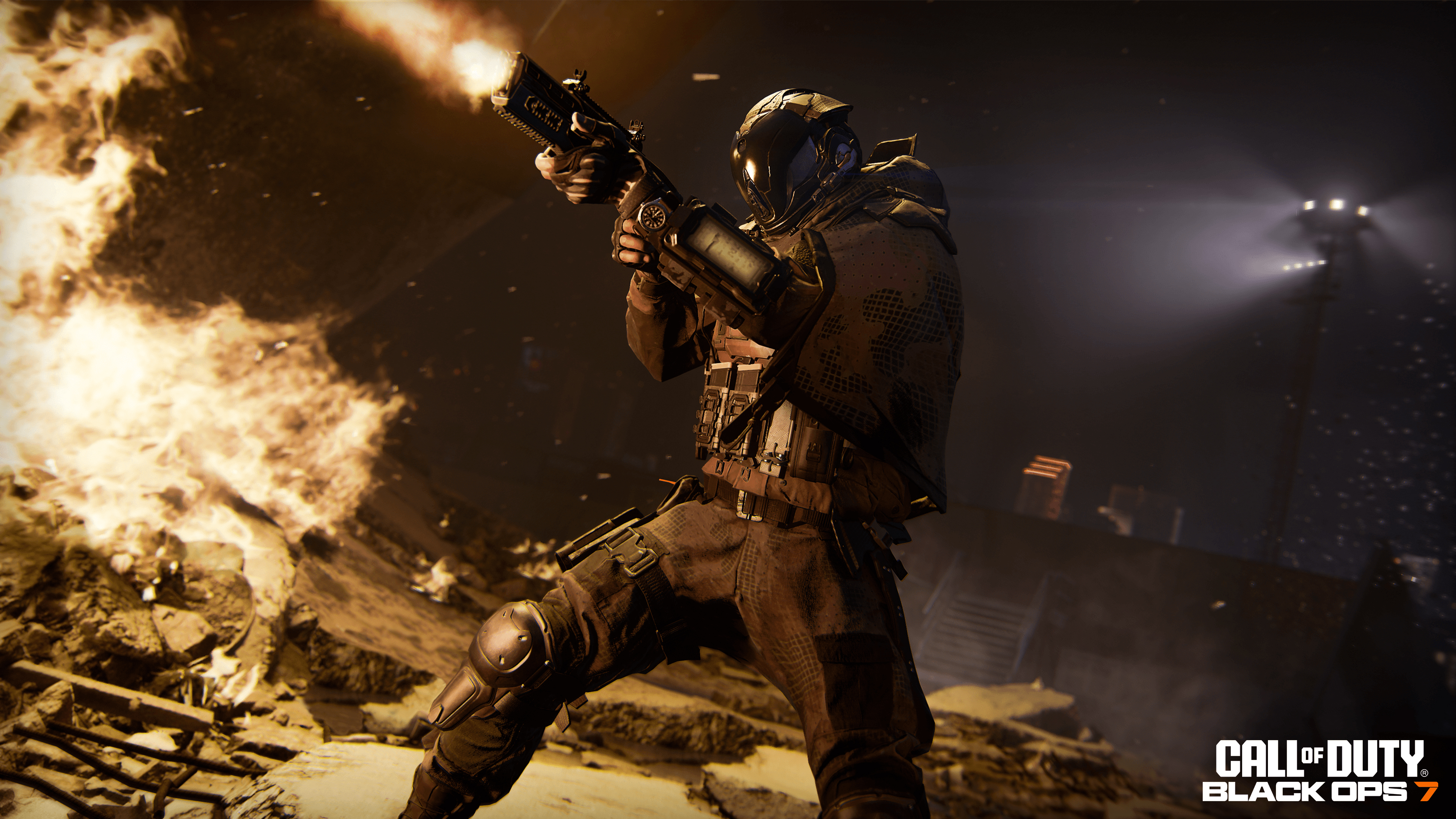 Call of Duty: Black Ops 7
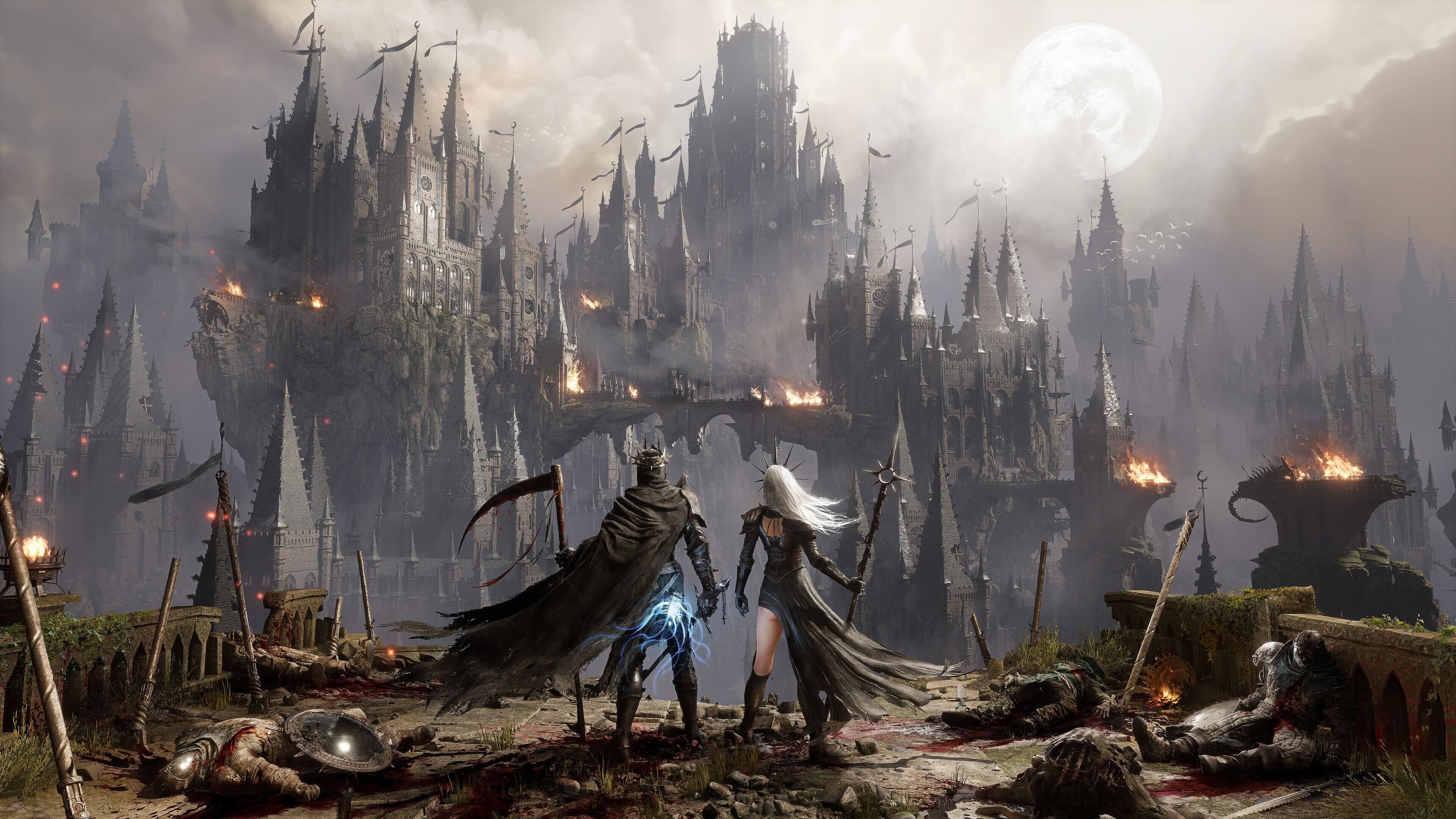 Lords of the Fallen II
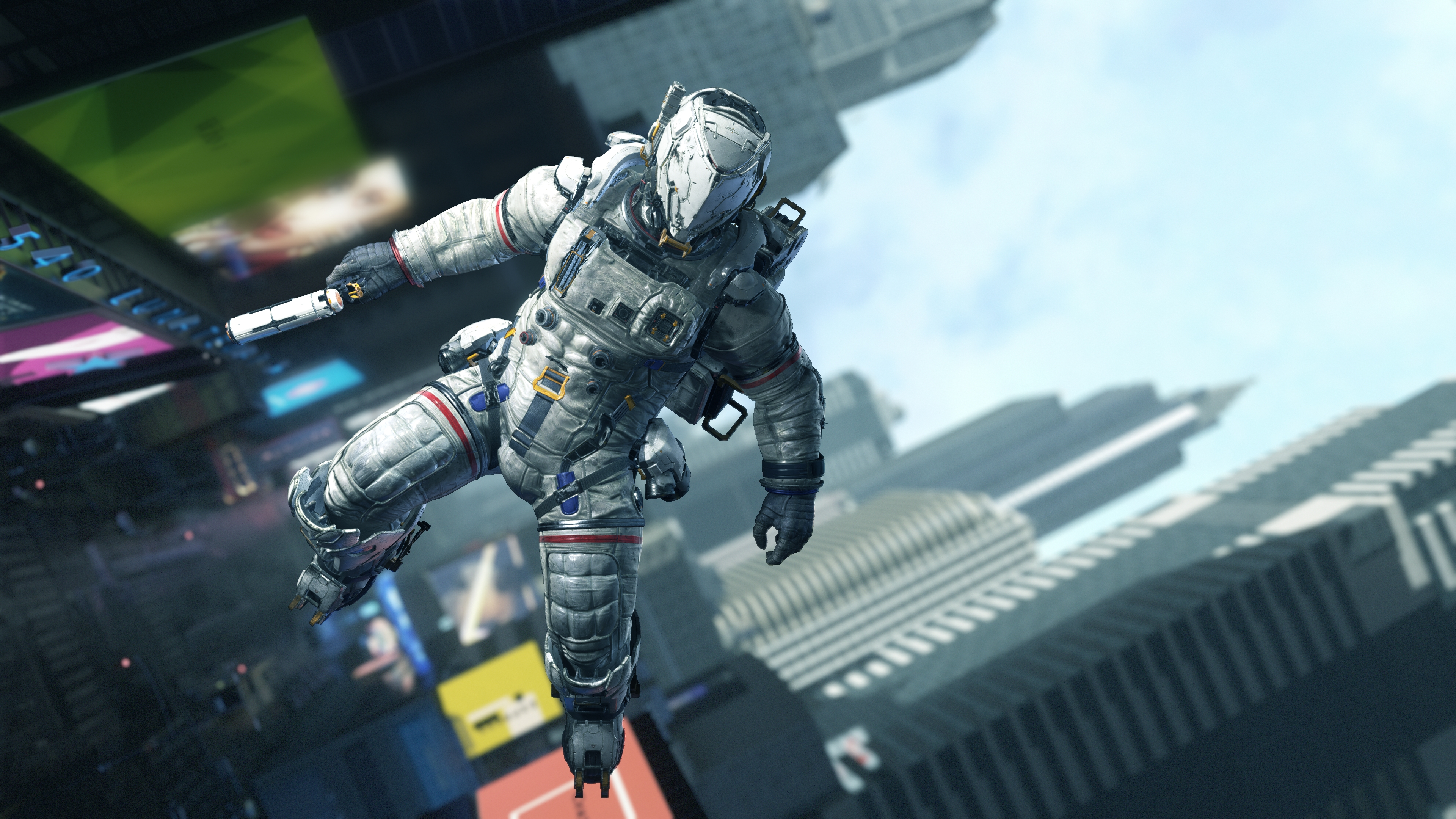 Hugh (Pragmata)
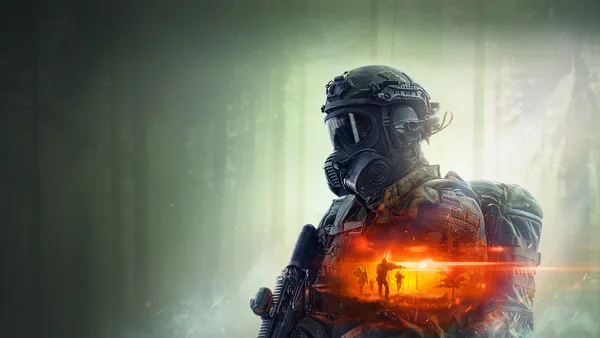
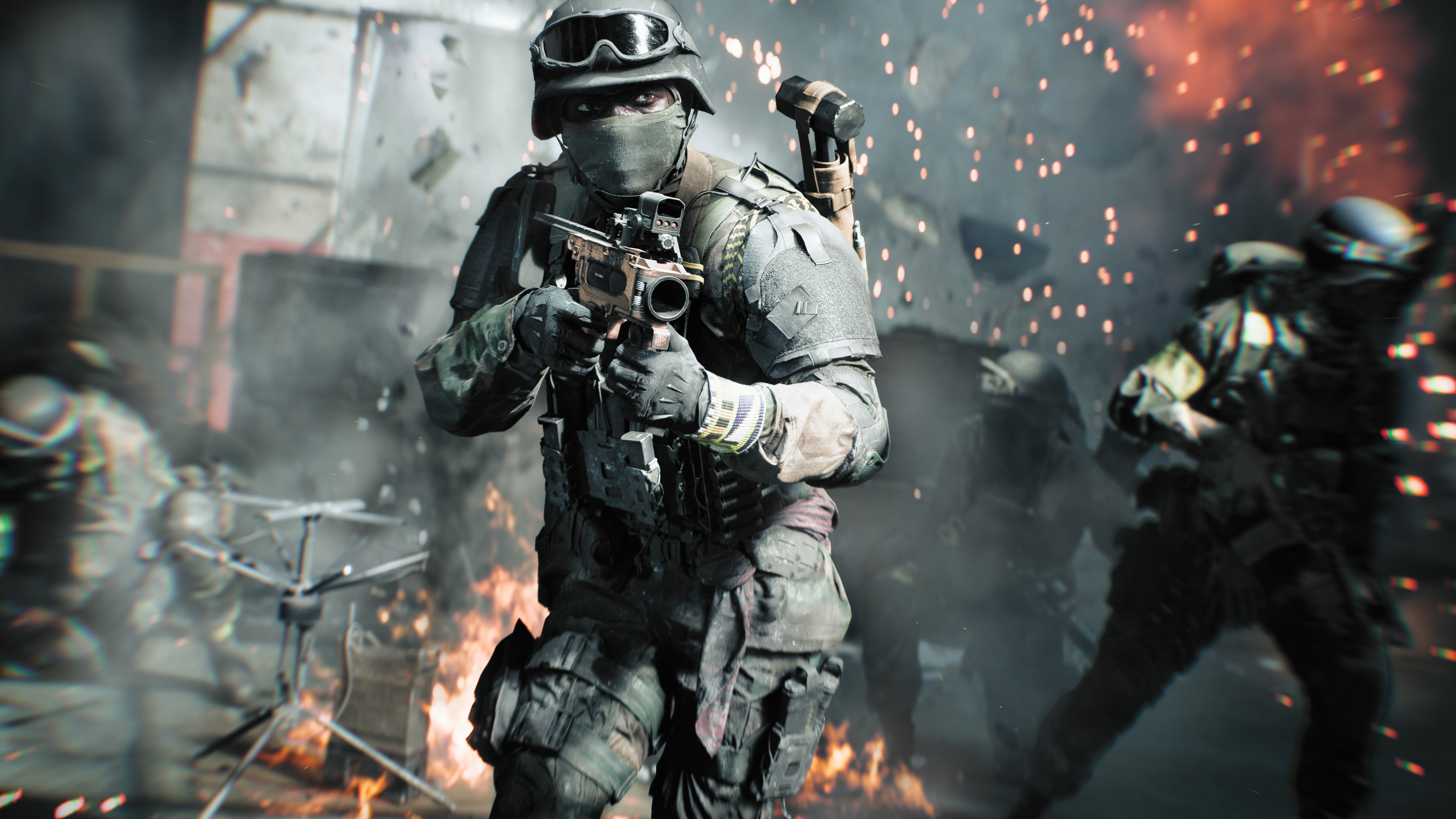 Battlefield 6
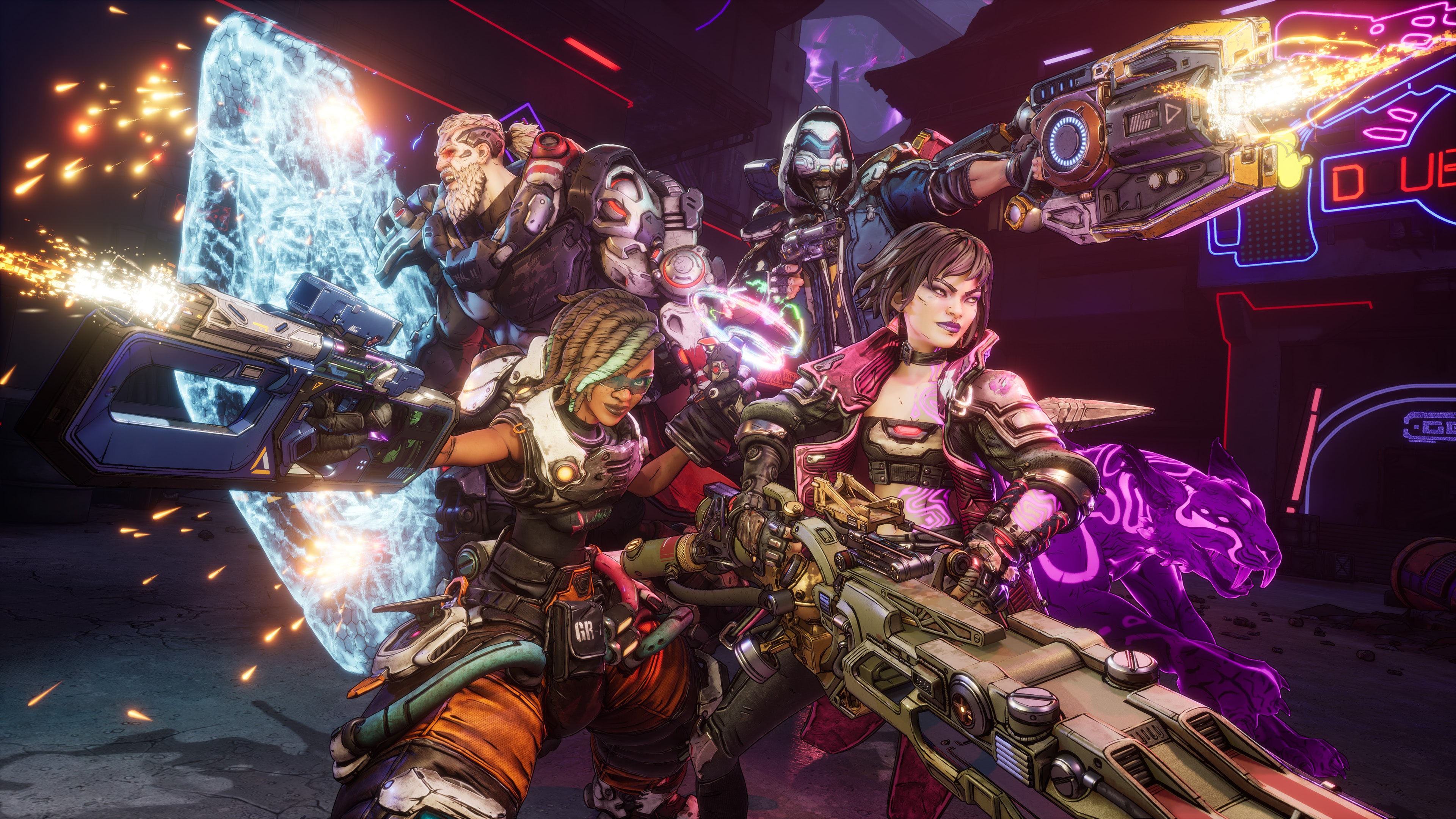 Borderlands 4
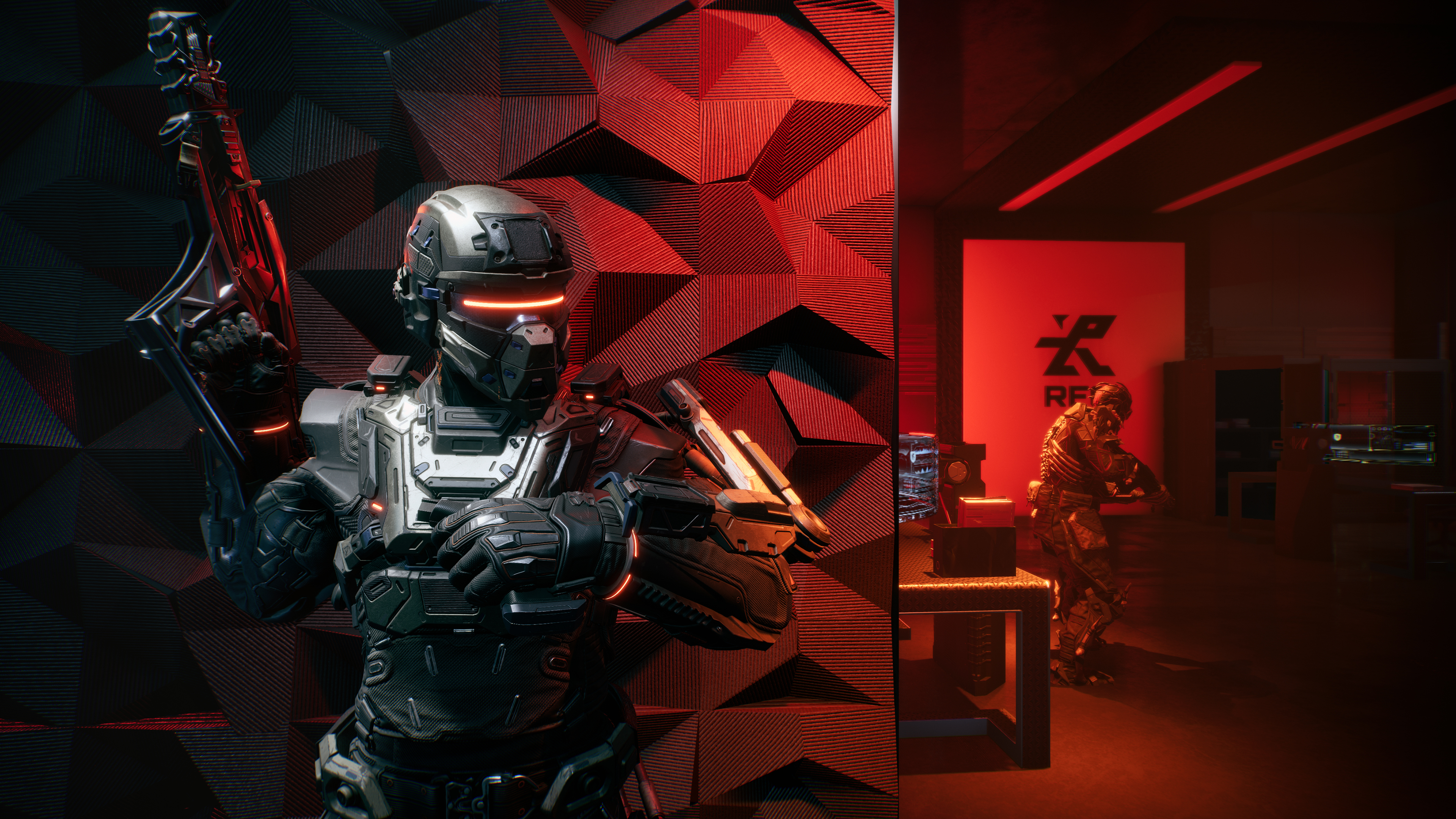 La Quimera
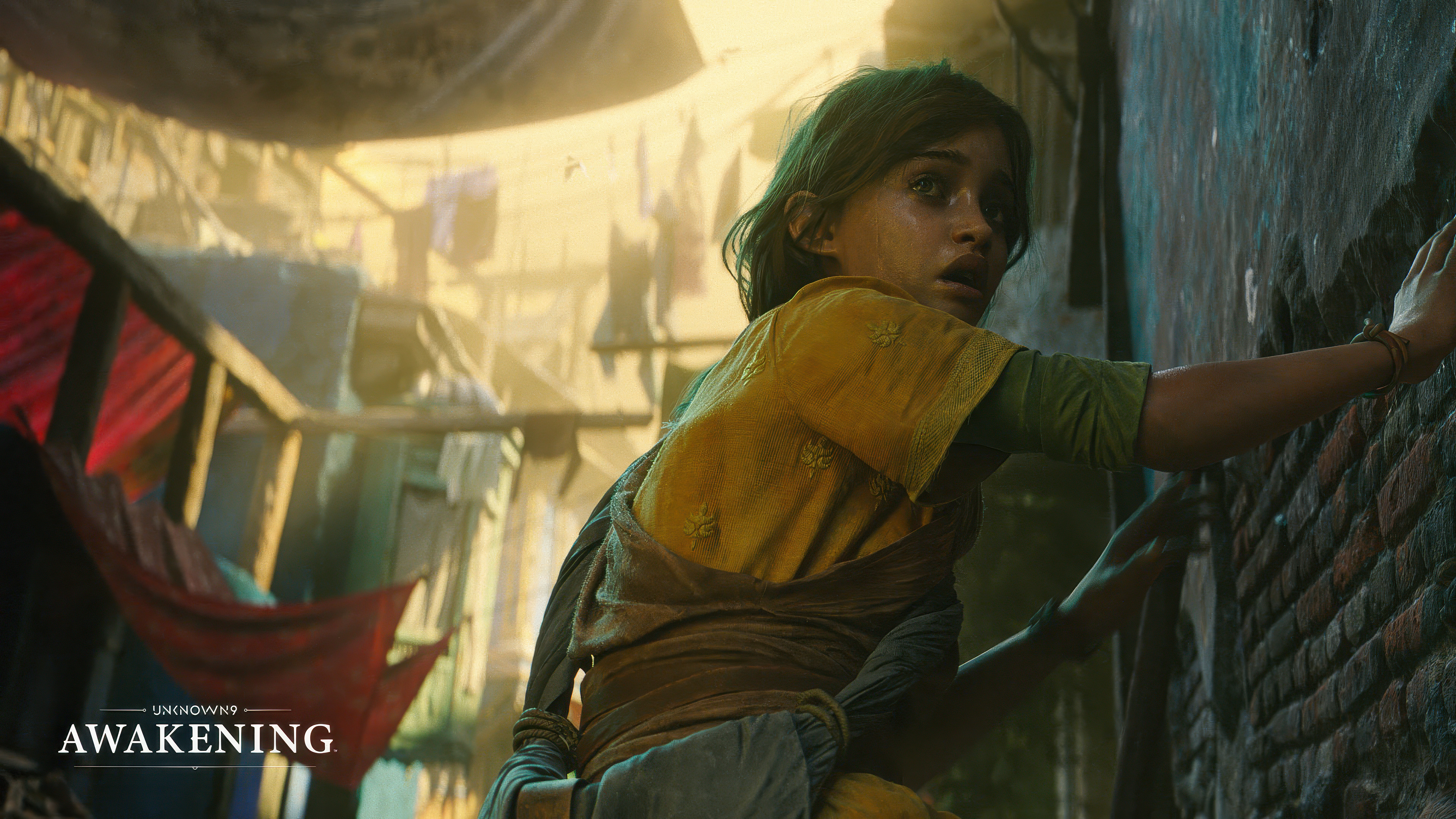 Unknown 9: Awakening
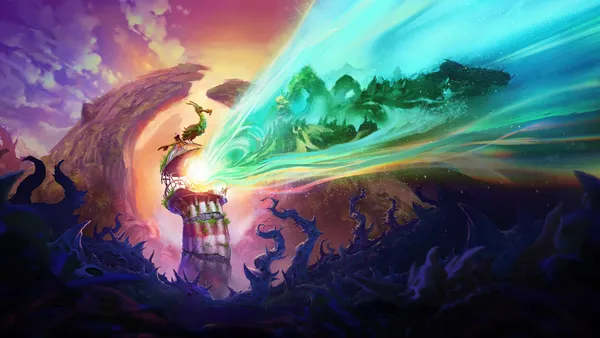
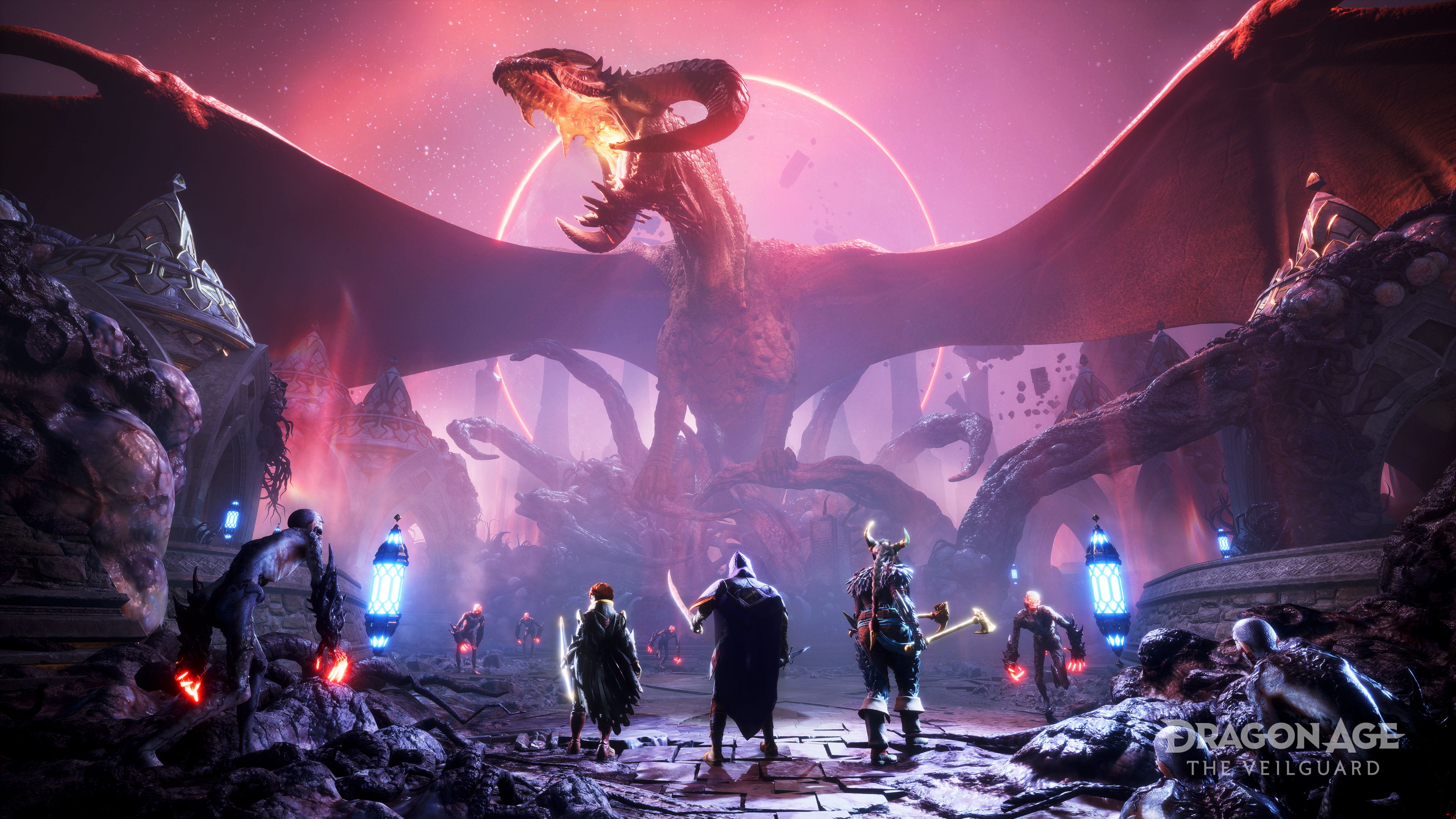 Dragon Age: The Veilguard
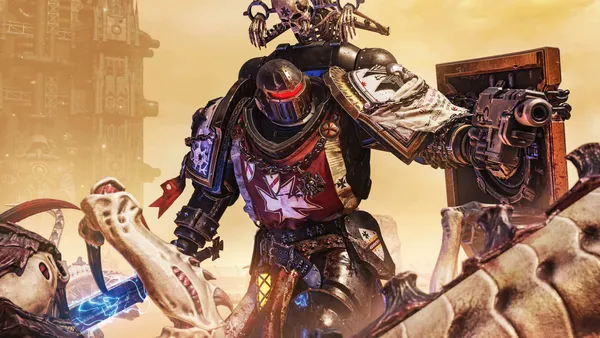
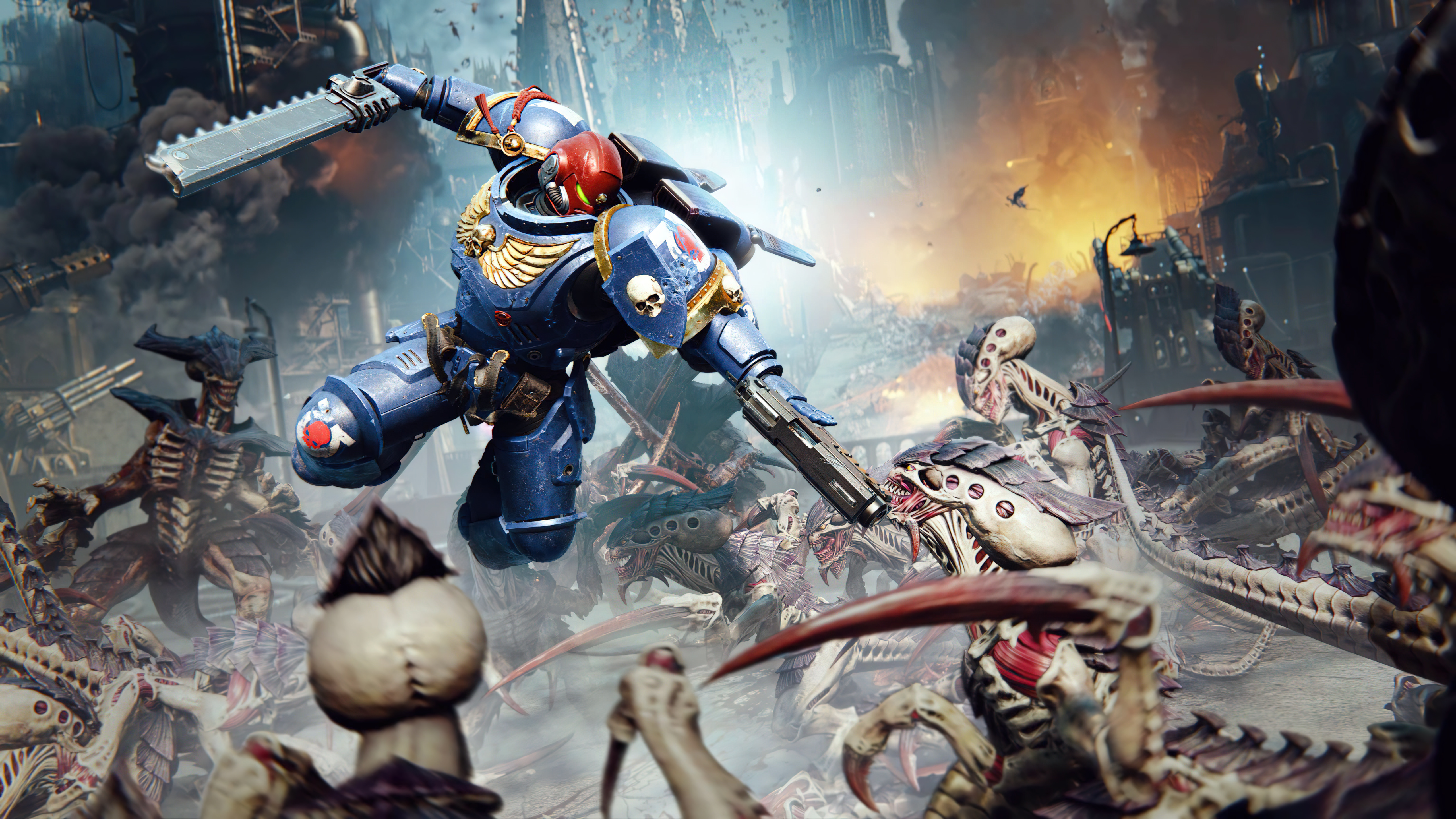 Warhammer 40K Space Marine 2
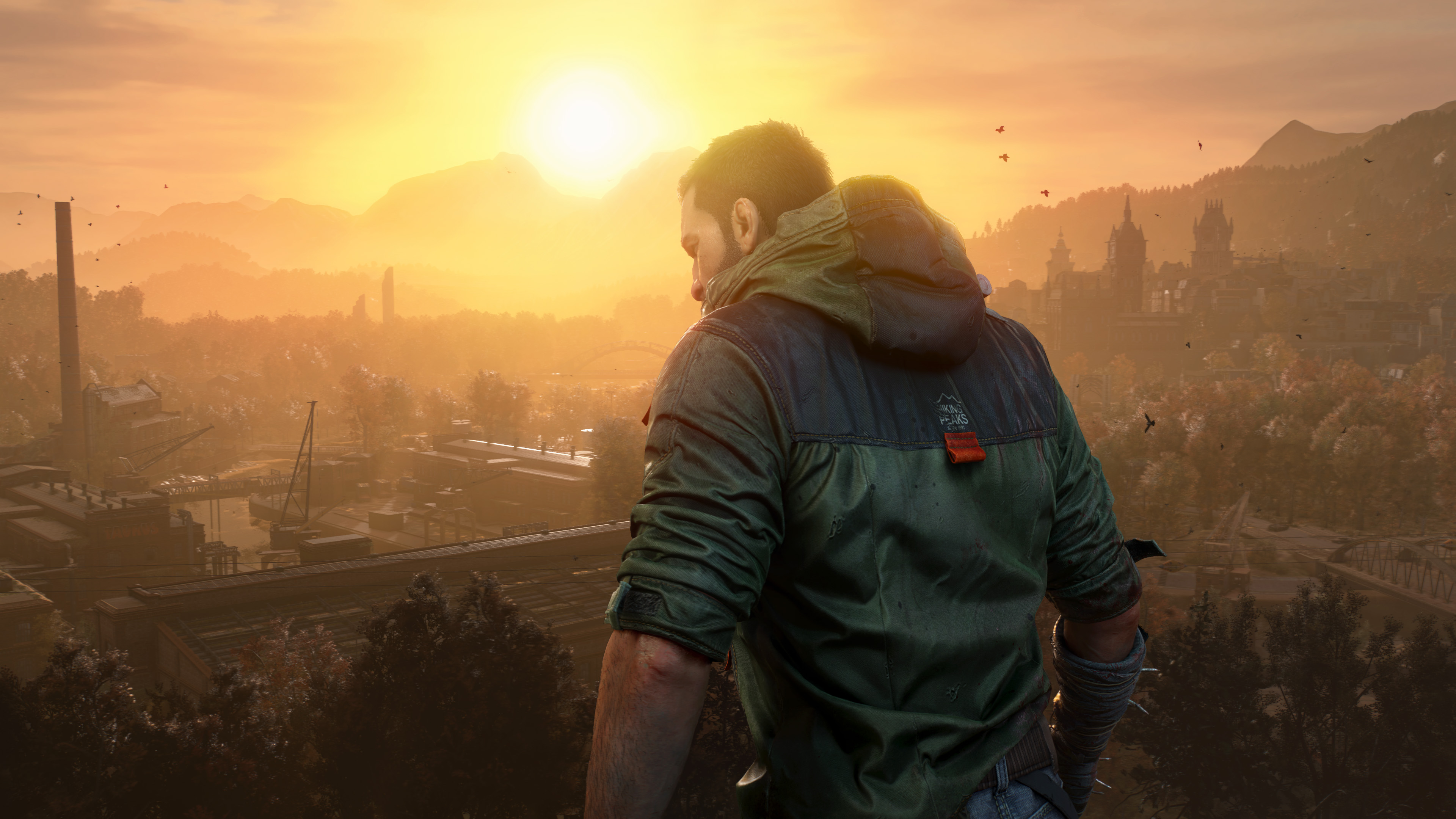 Dying Light: The Beast
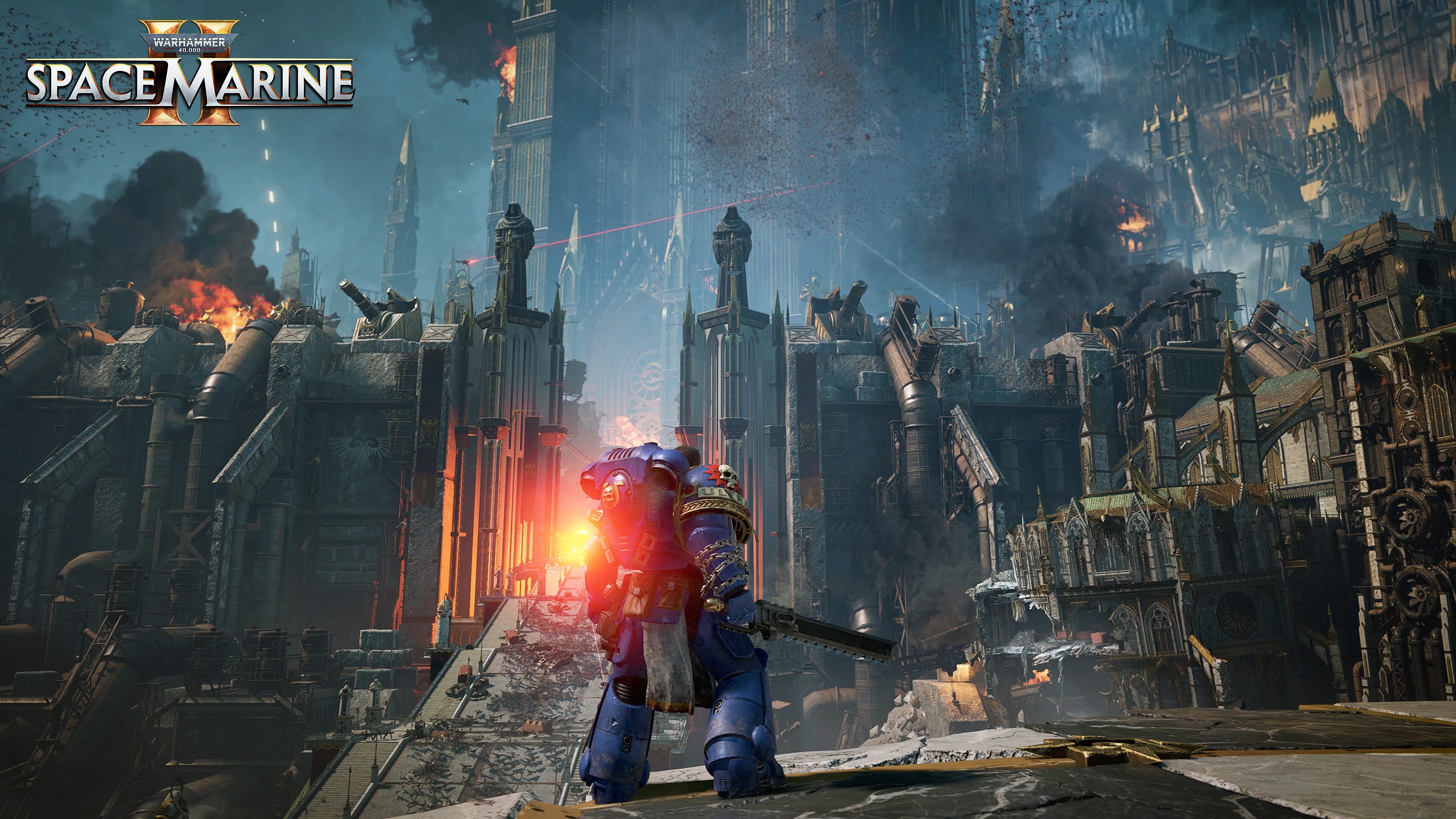 Titus
Titus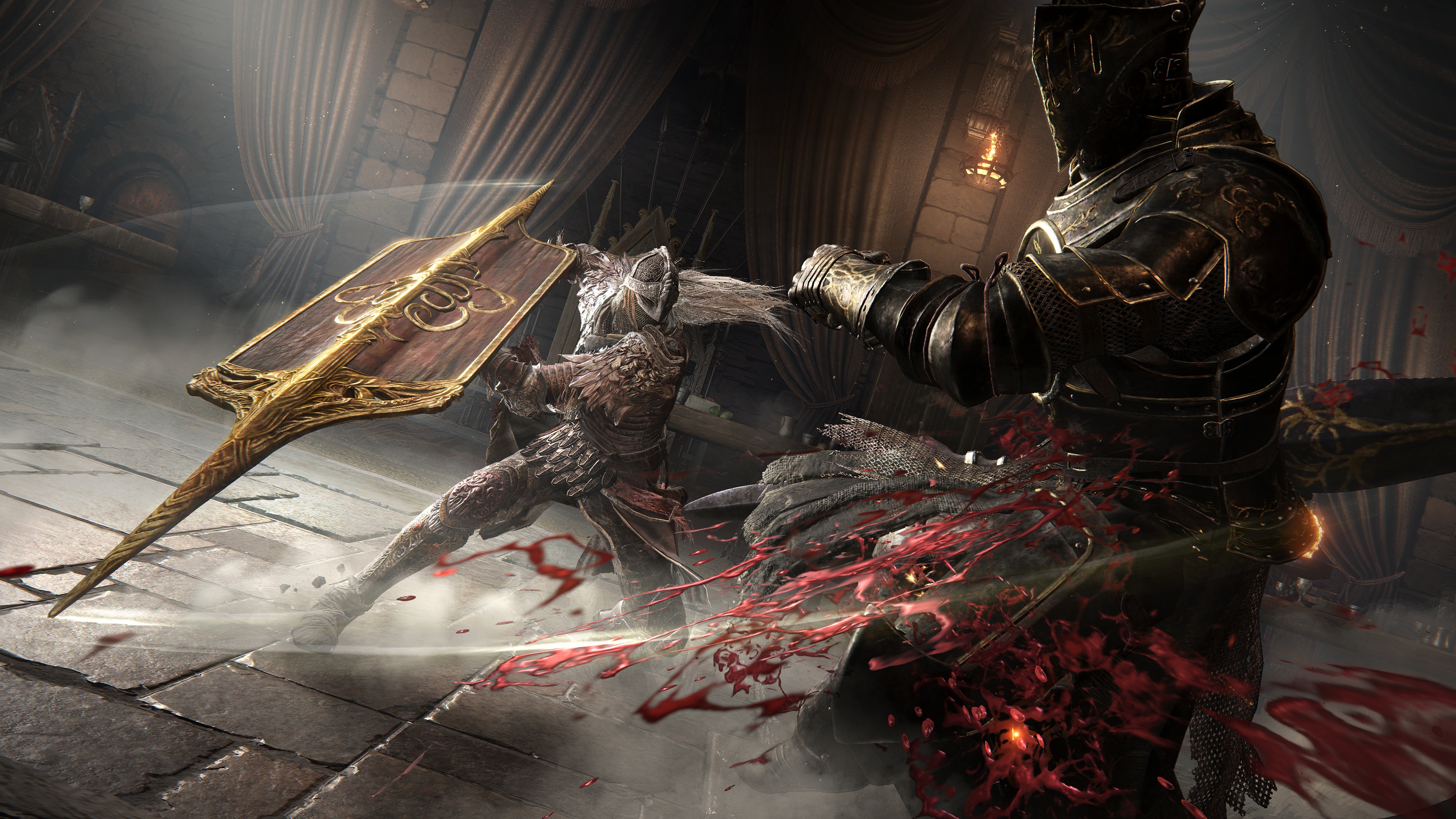 Elden Ring: Shadow of the Erdtree
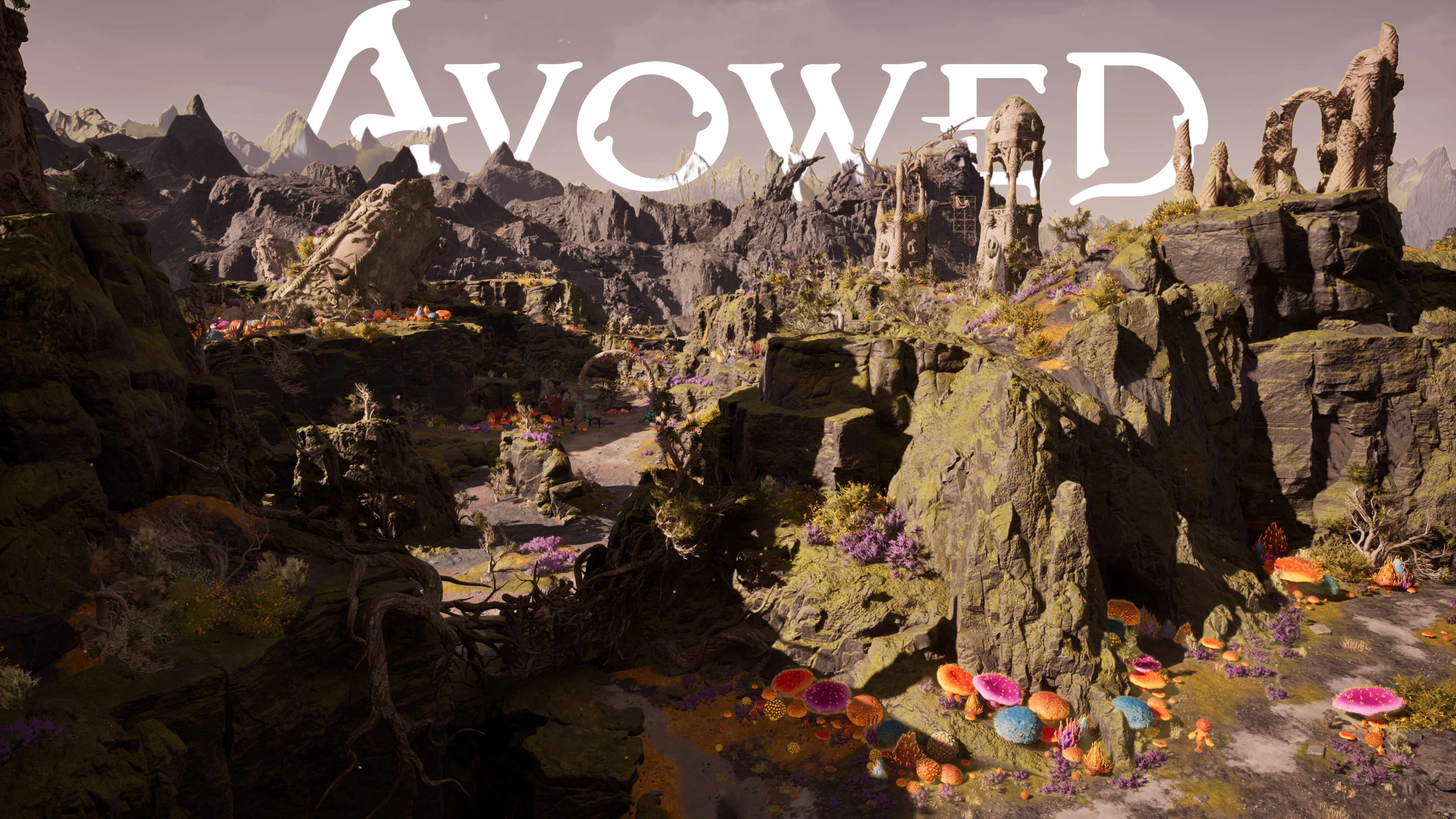 Avowed
 Tekken 8
 Avatar Frontiers of Pandora
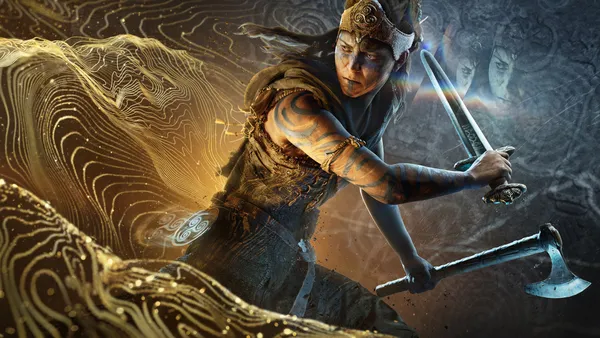
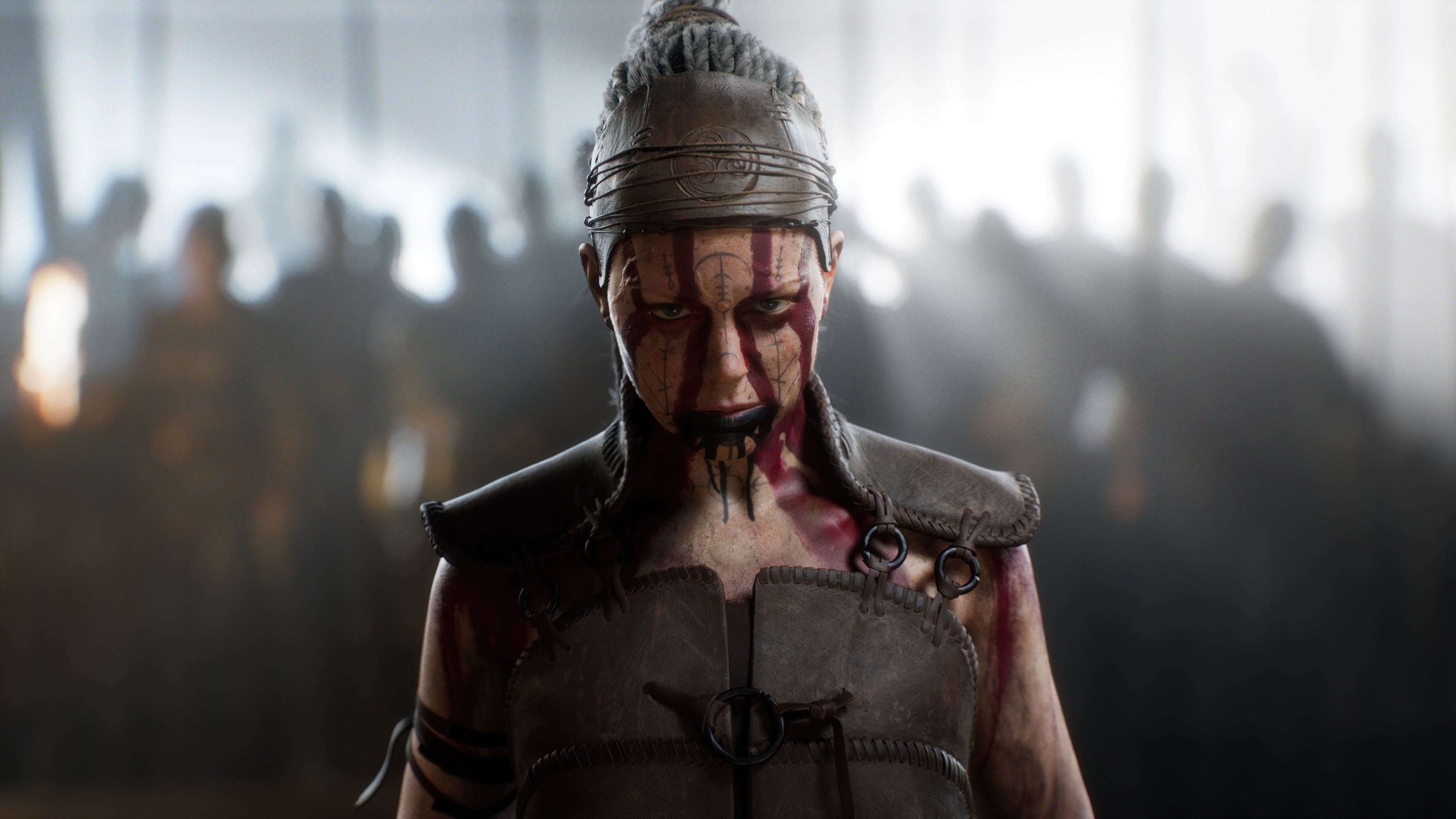 Senua's Saga Hellblade II
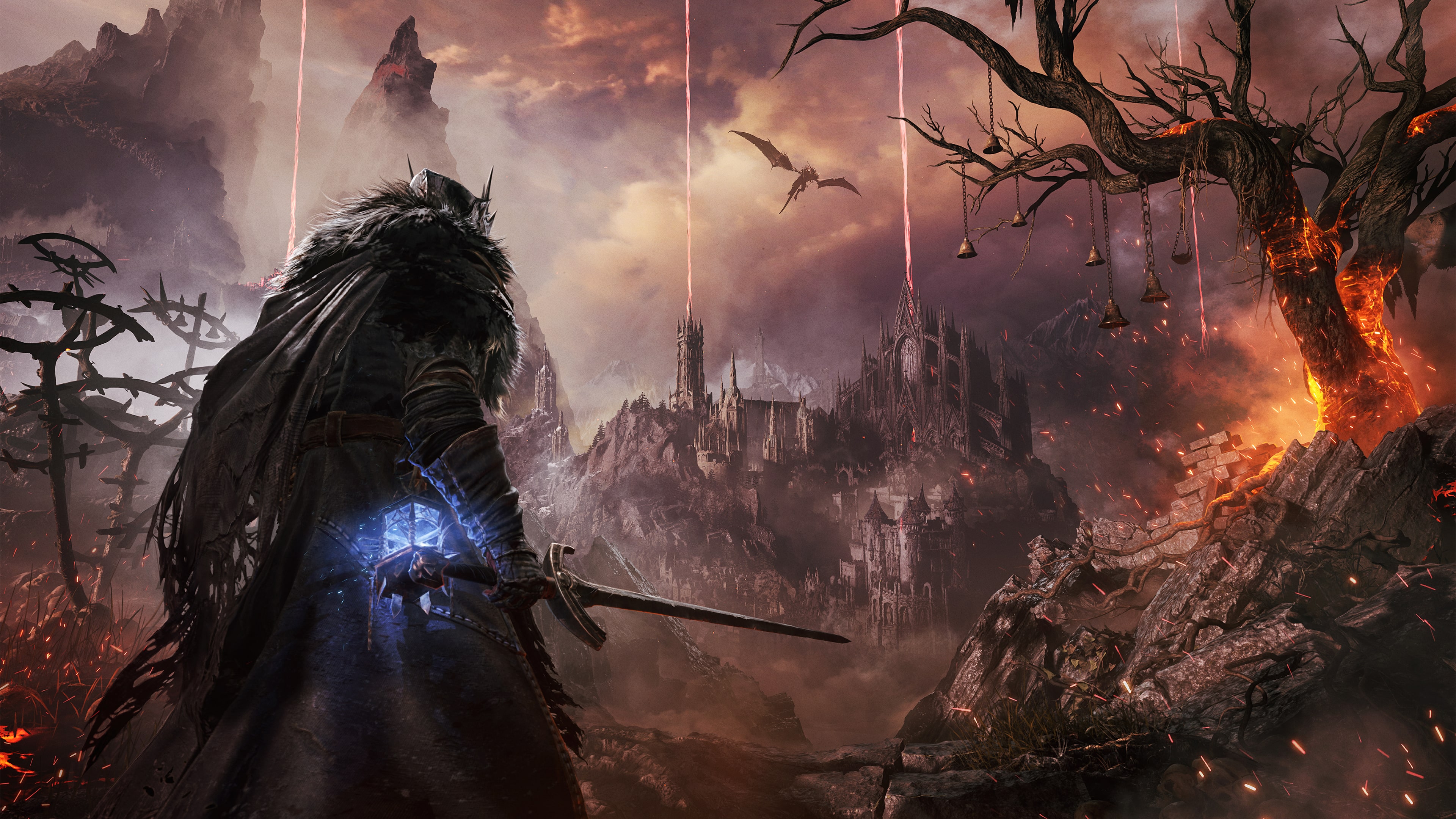 Lords of the Fallen
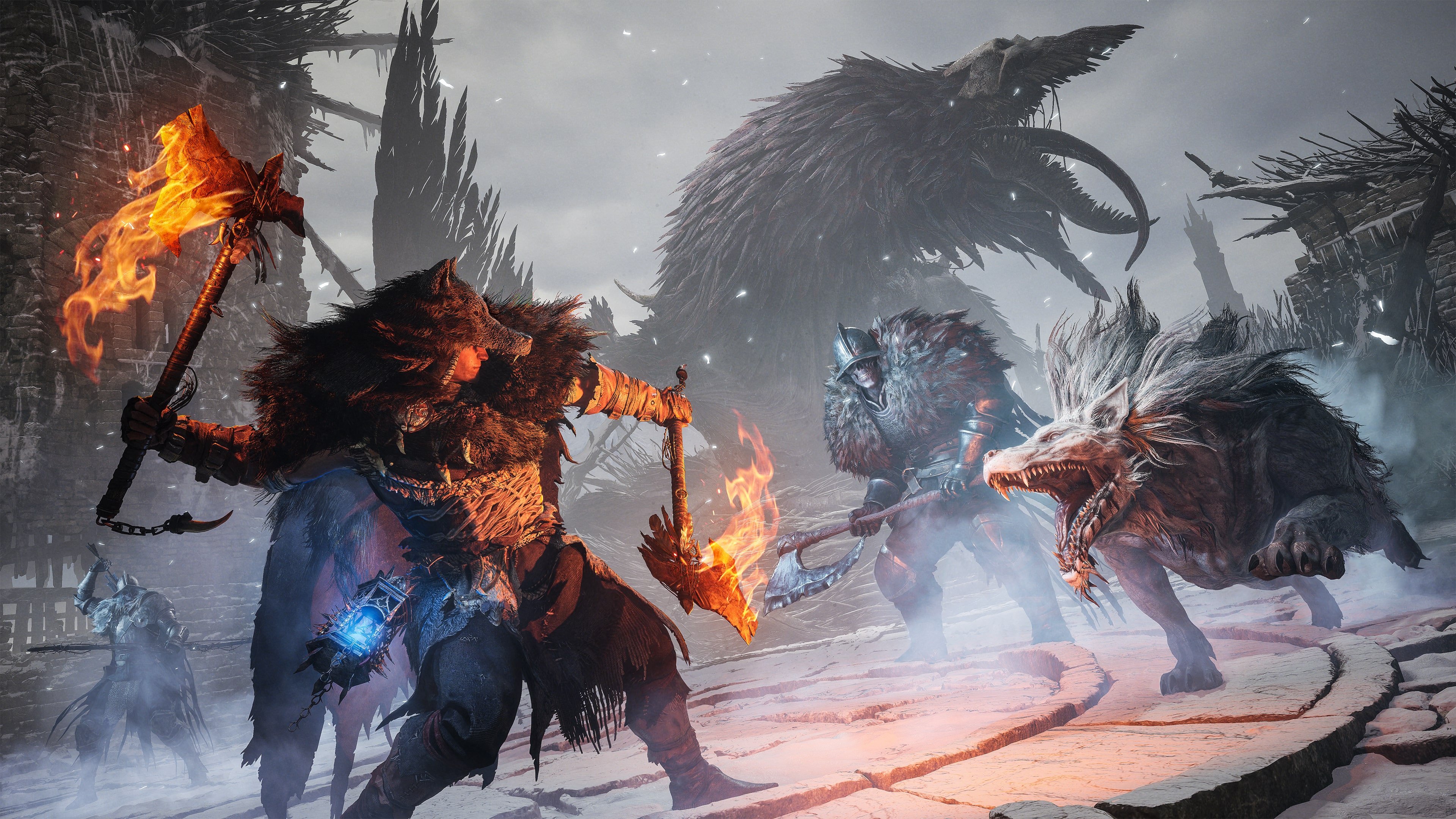 Lords of the Fallen
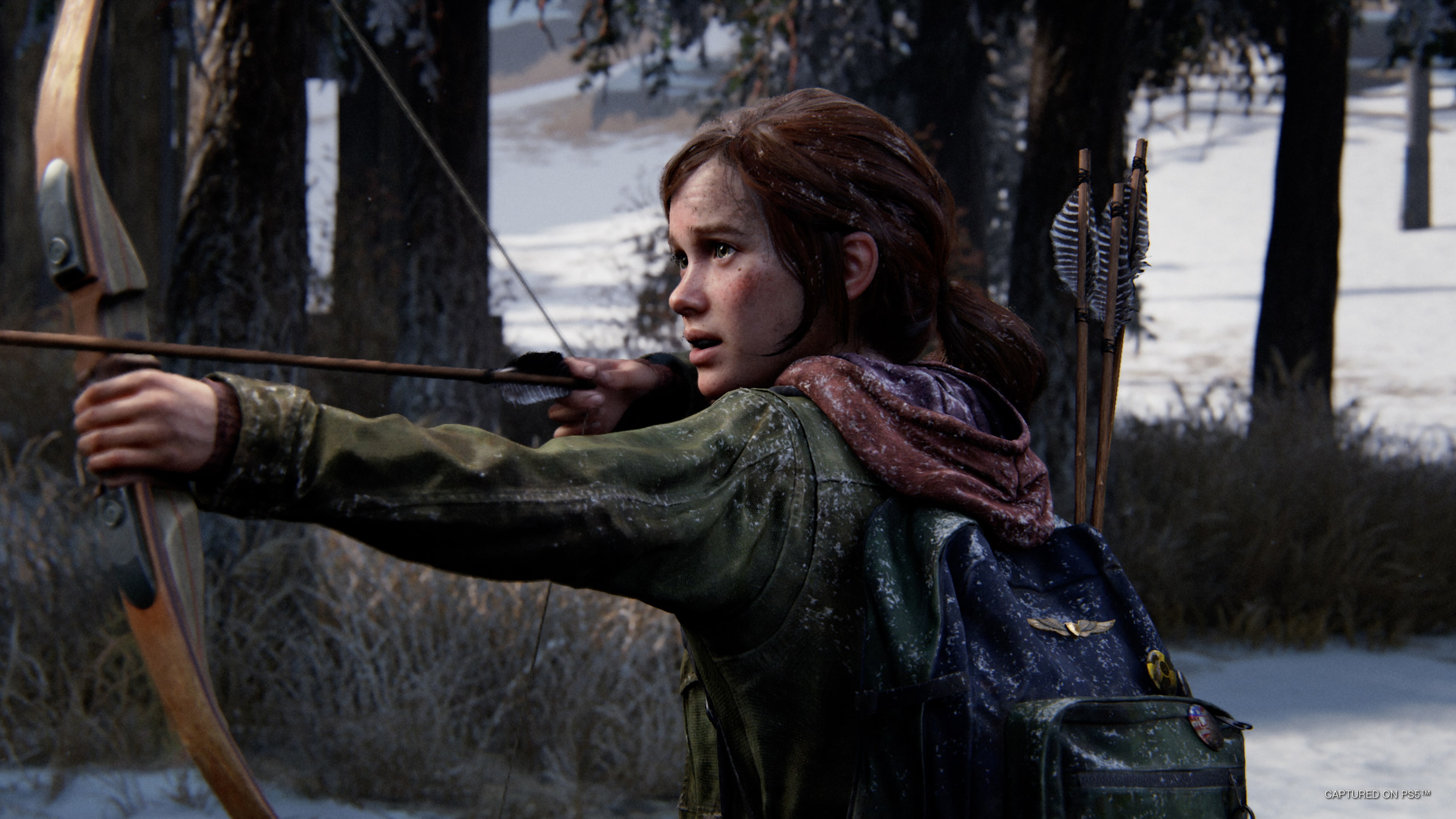 The Last of Us Part 1
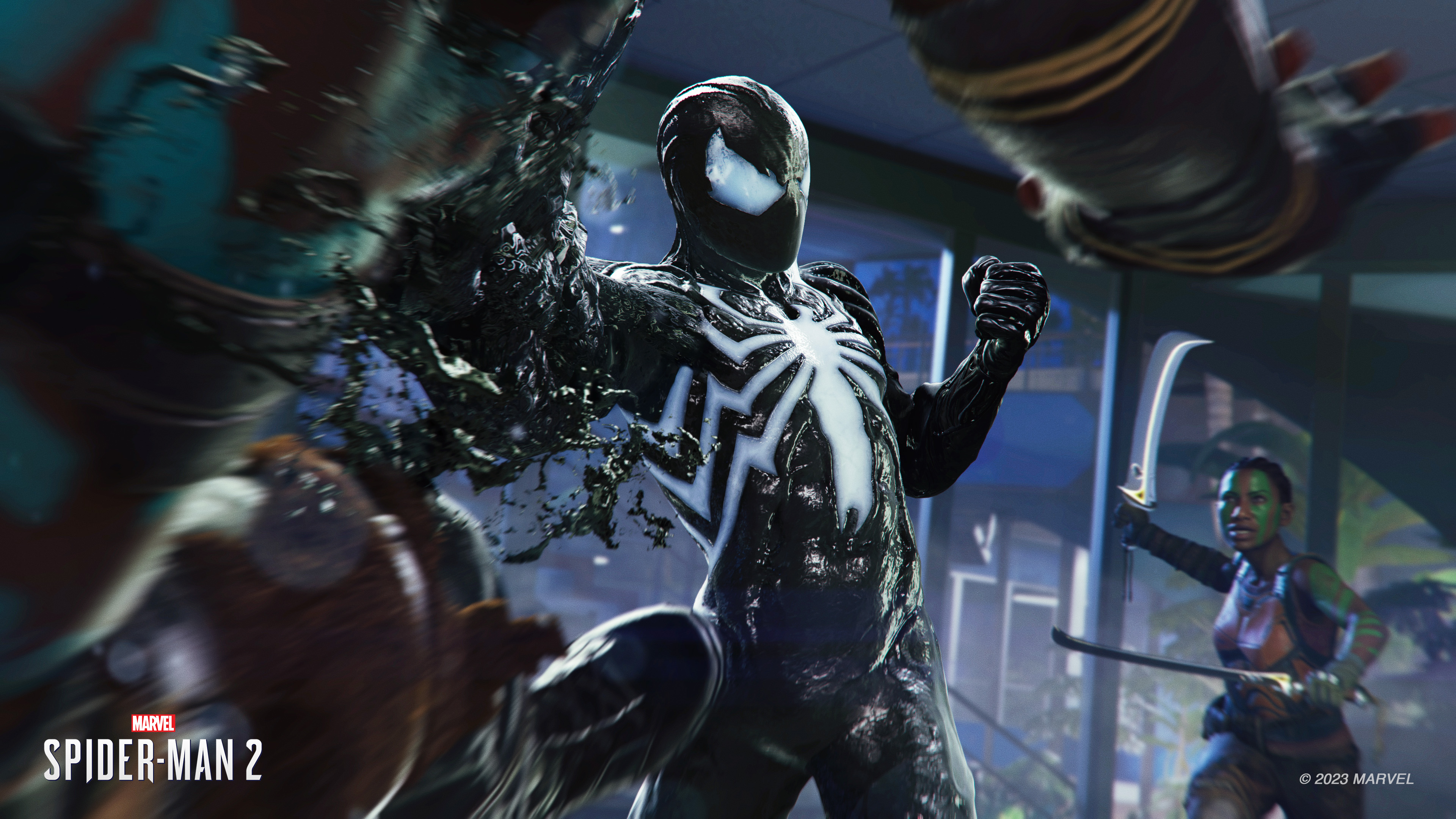 Symbiont
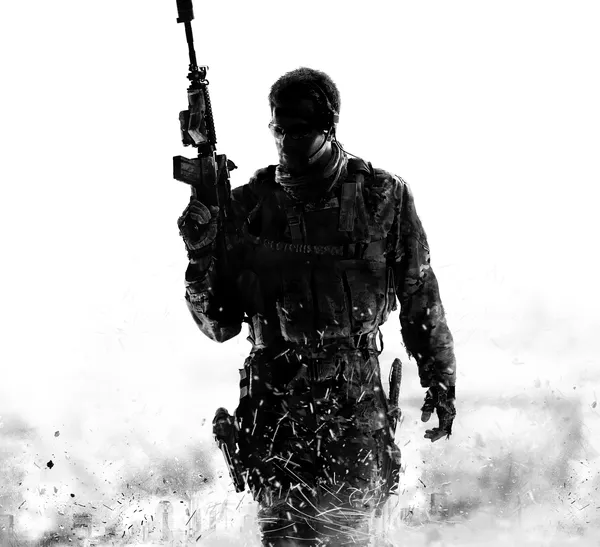
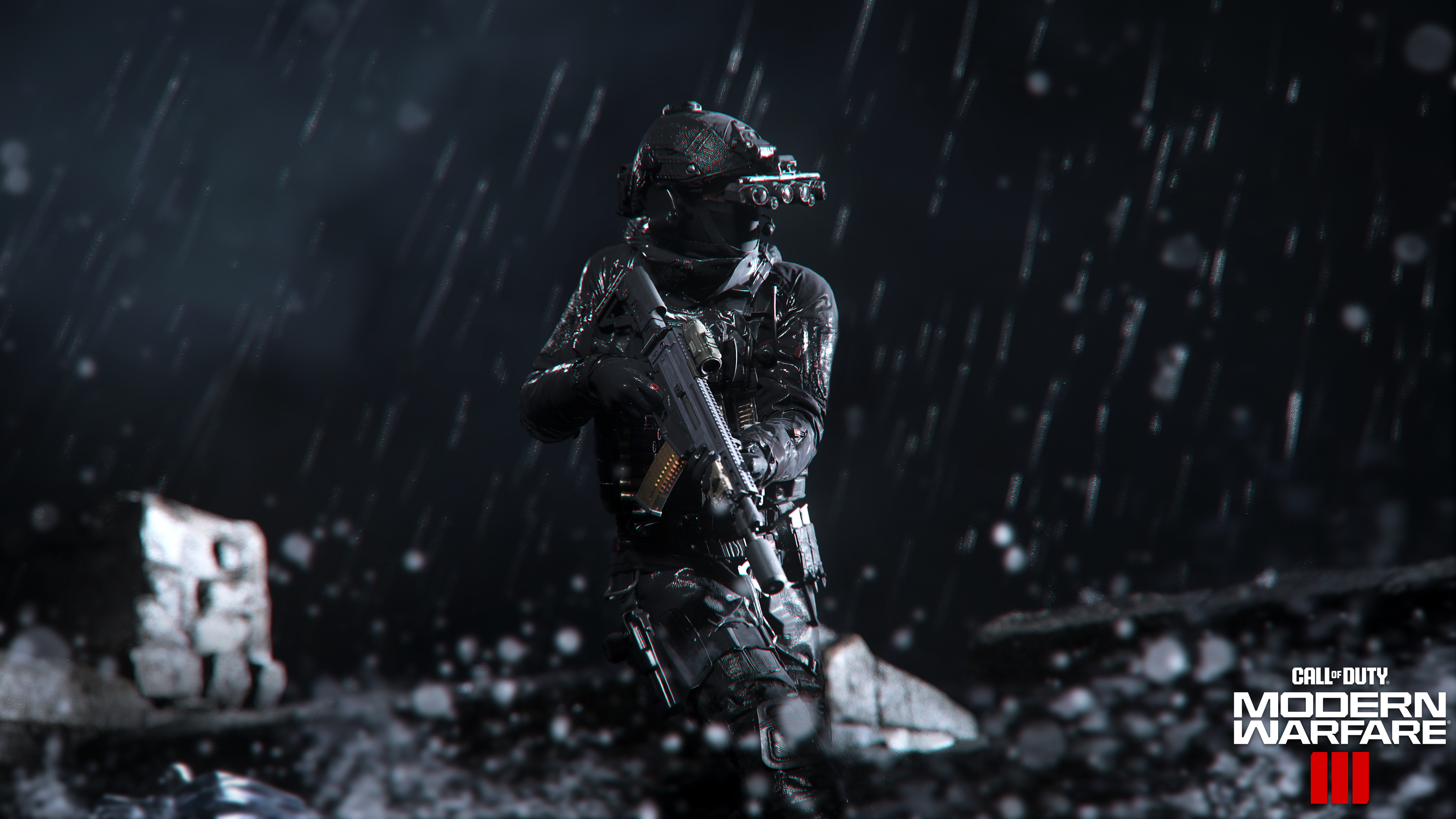 Call of Duty: Modern Warfare 3
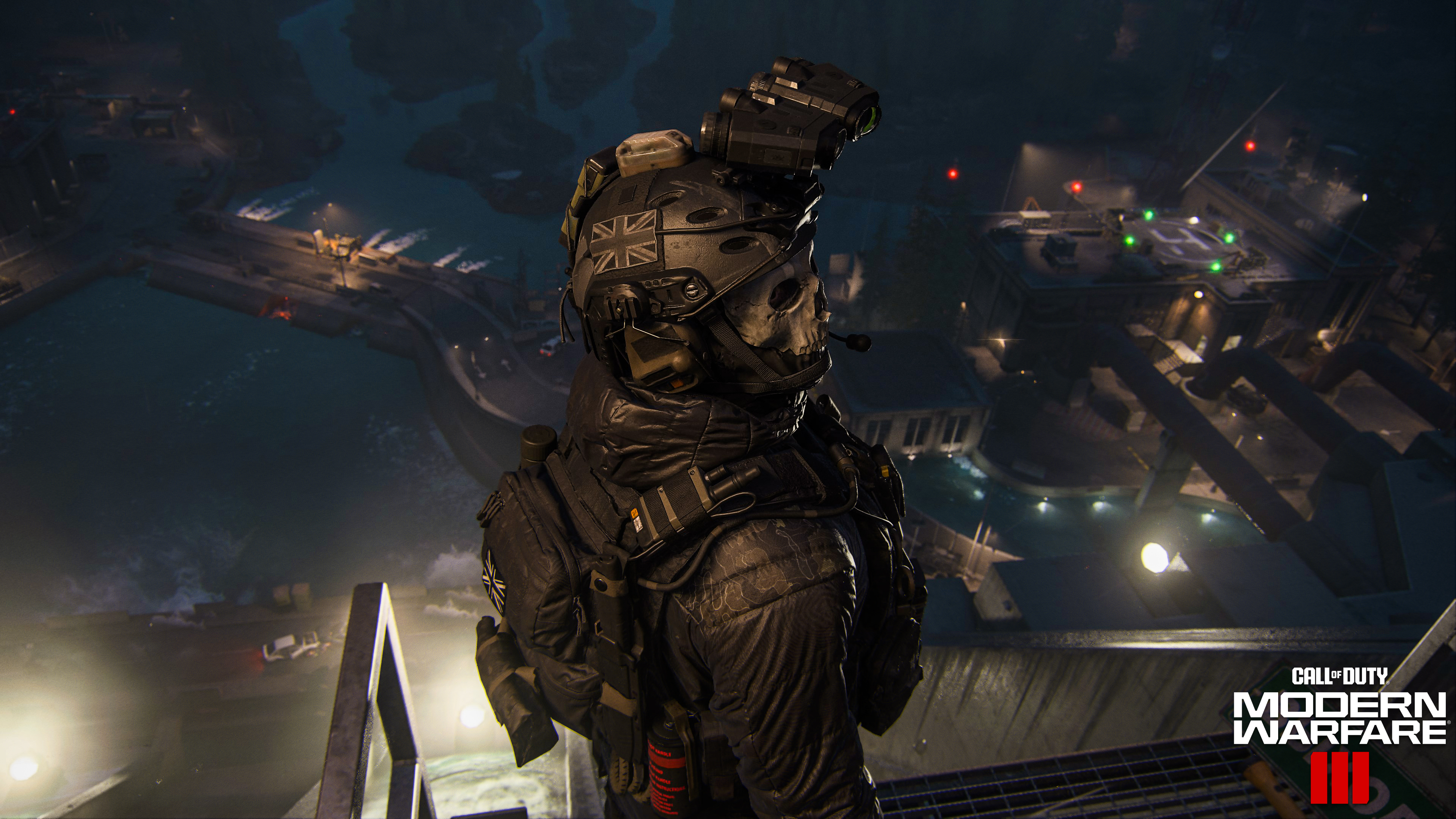 Call of Duty: Modern Warfare 3
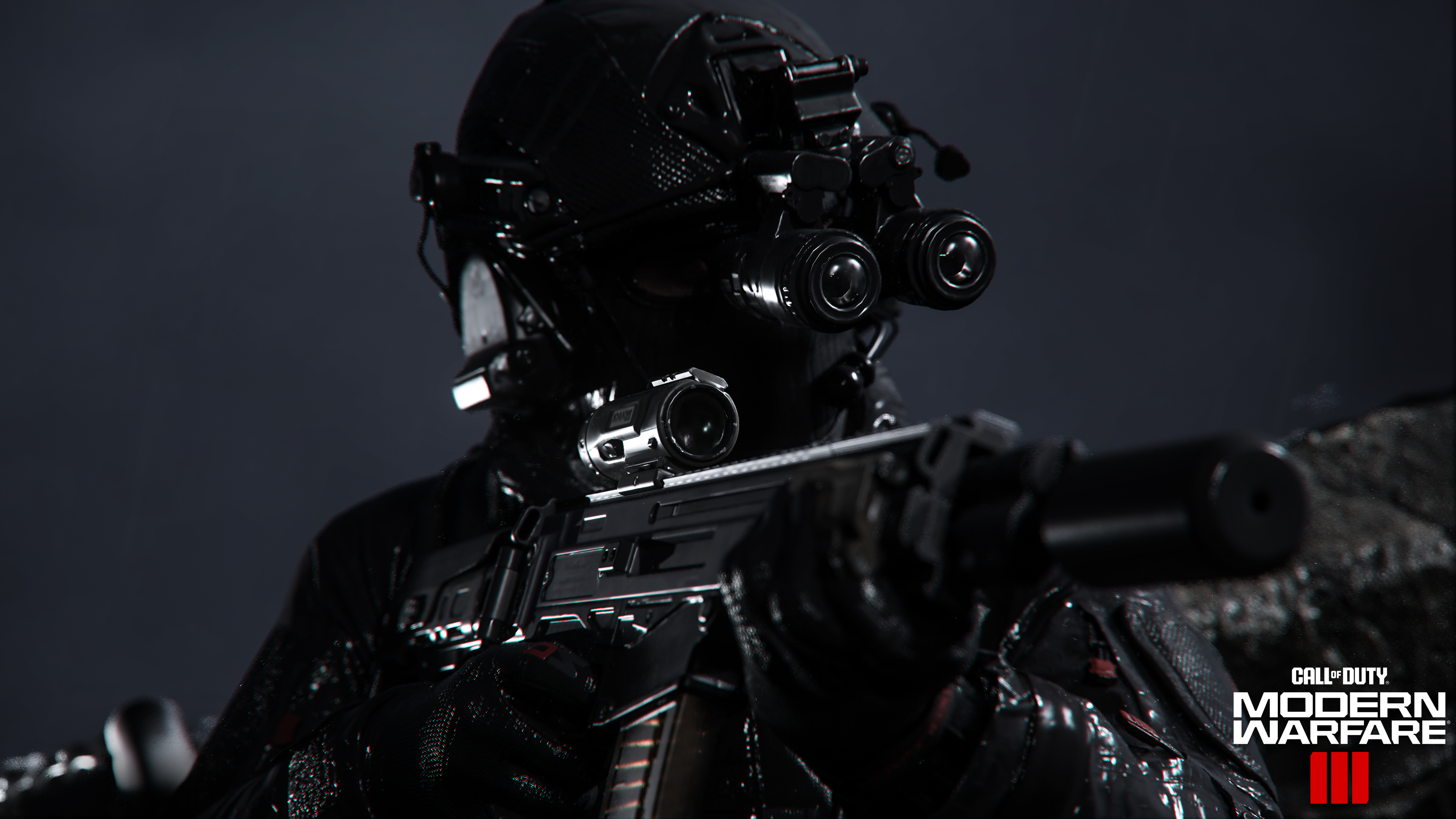 Call of Duty: Modern Warfare 3
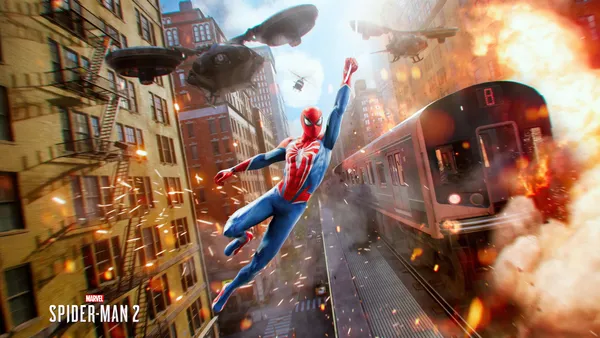
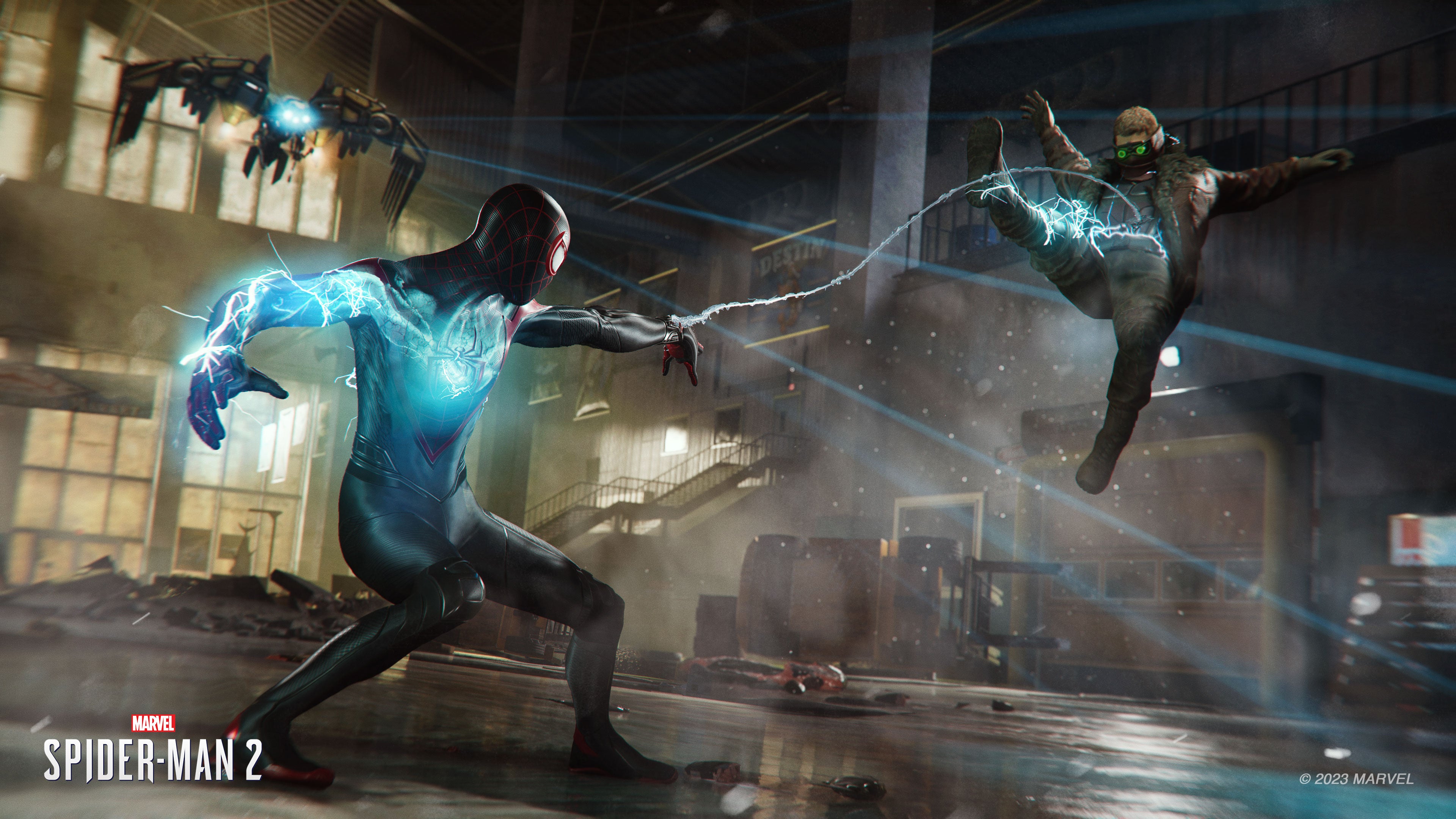 Marvel's Spider-Man 2
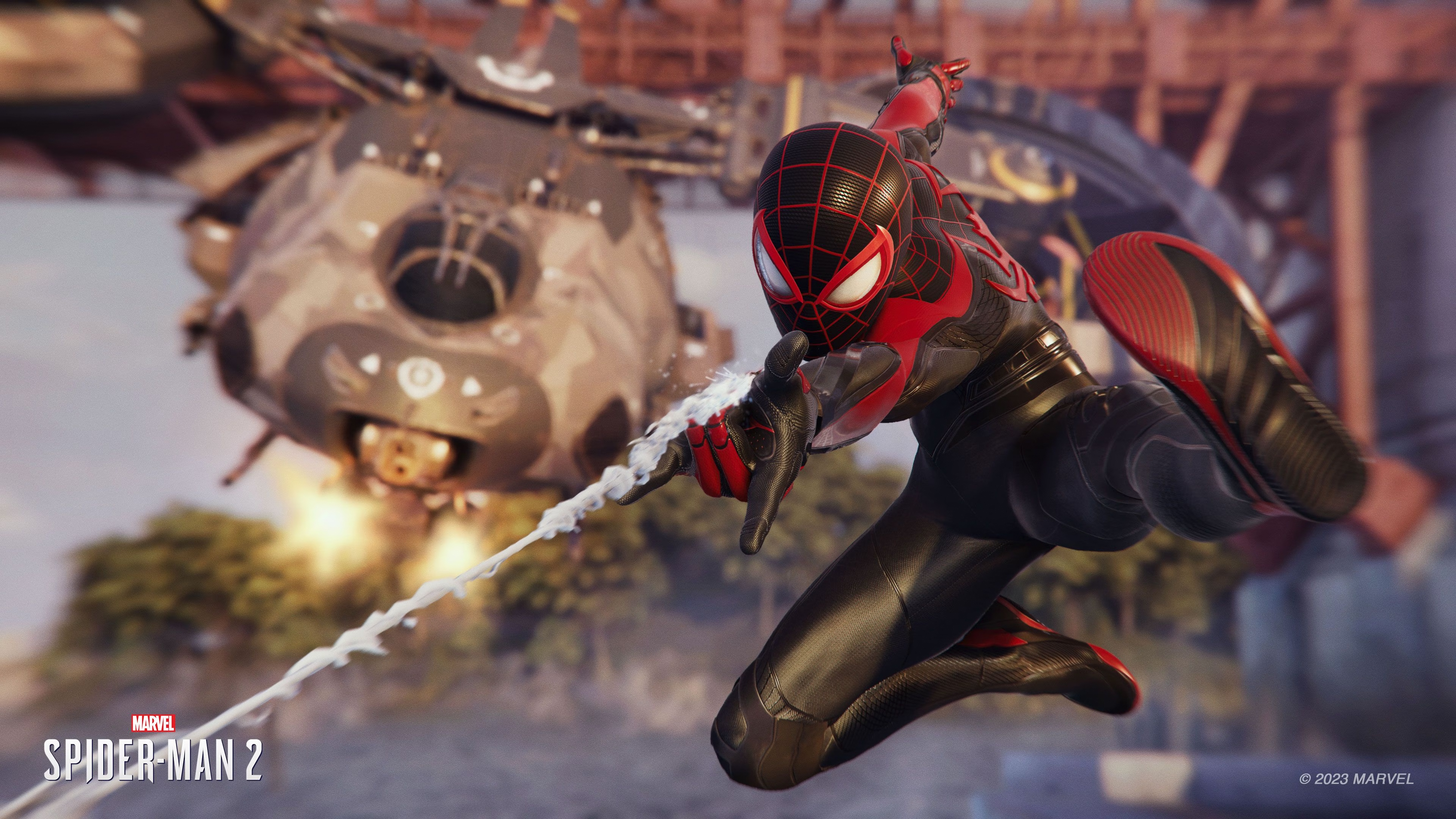 Marvel's Spider-Man 2
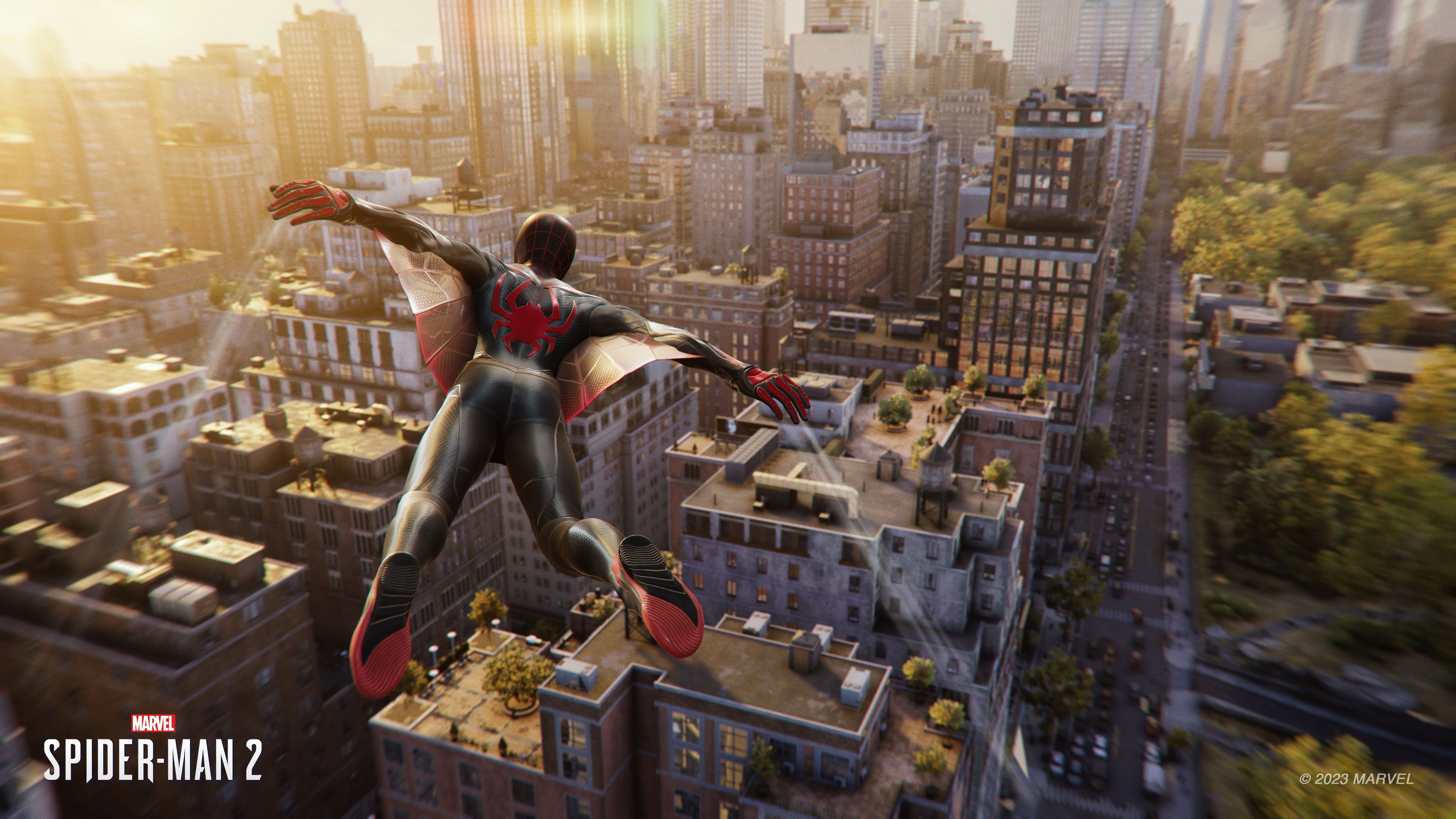 Marvel's Spider-Man 2
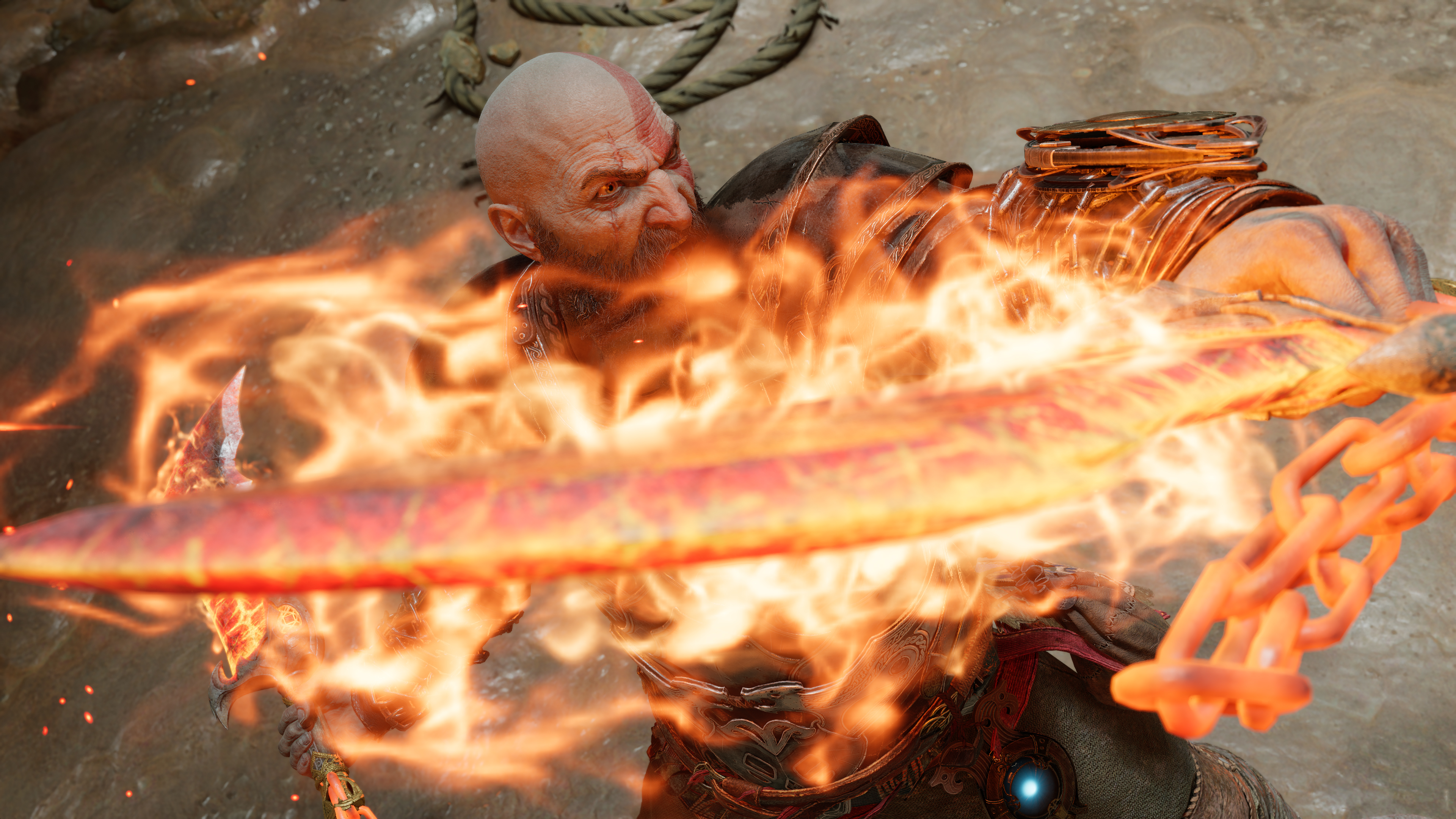 God of War Ragnarök
 Need for Speed Unbound
 Battlefield 2042
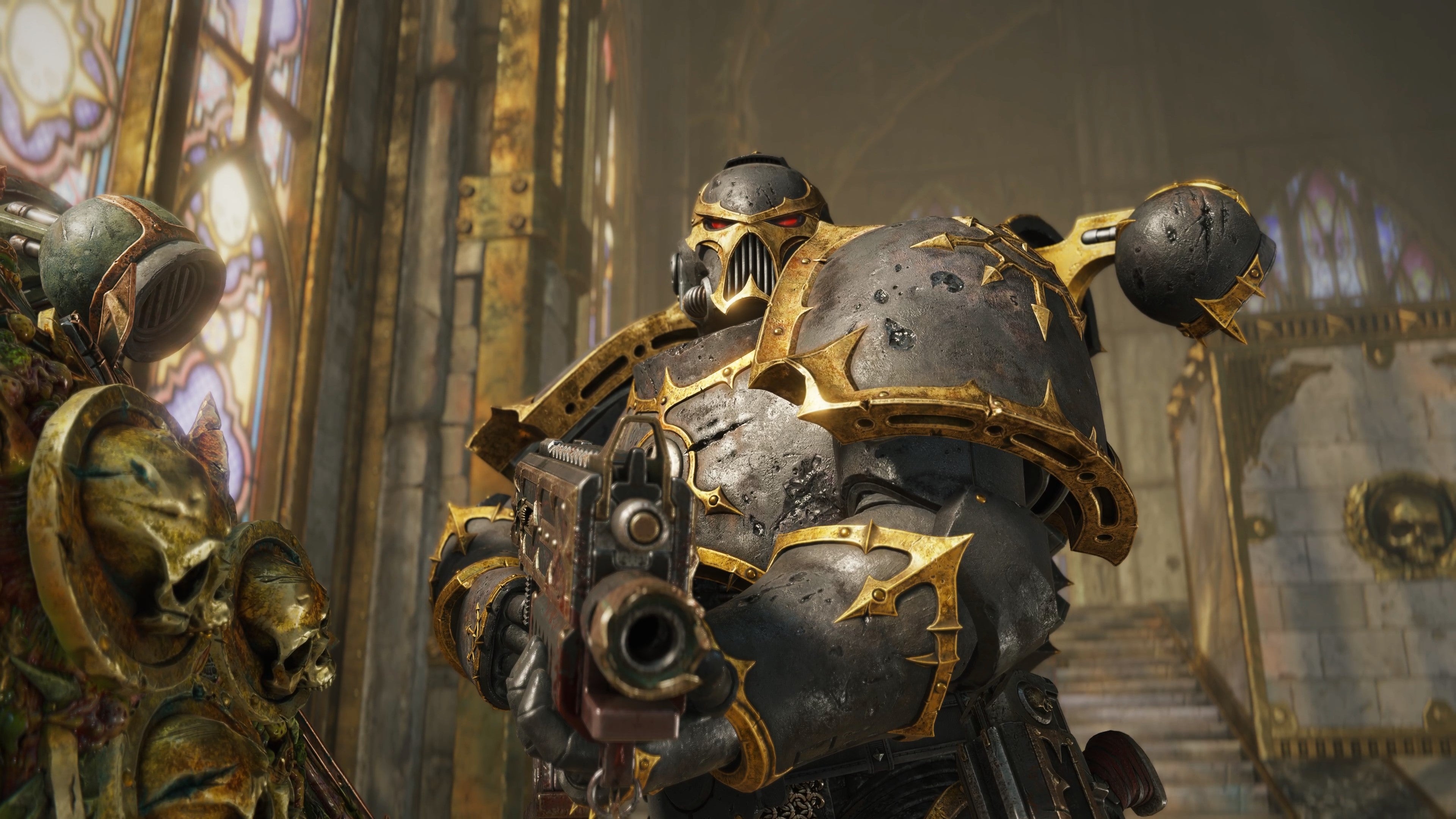 Warhammer 40K Space Marine 2
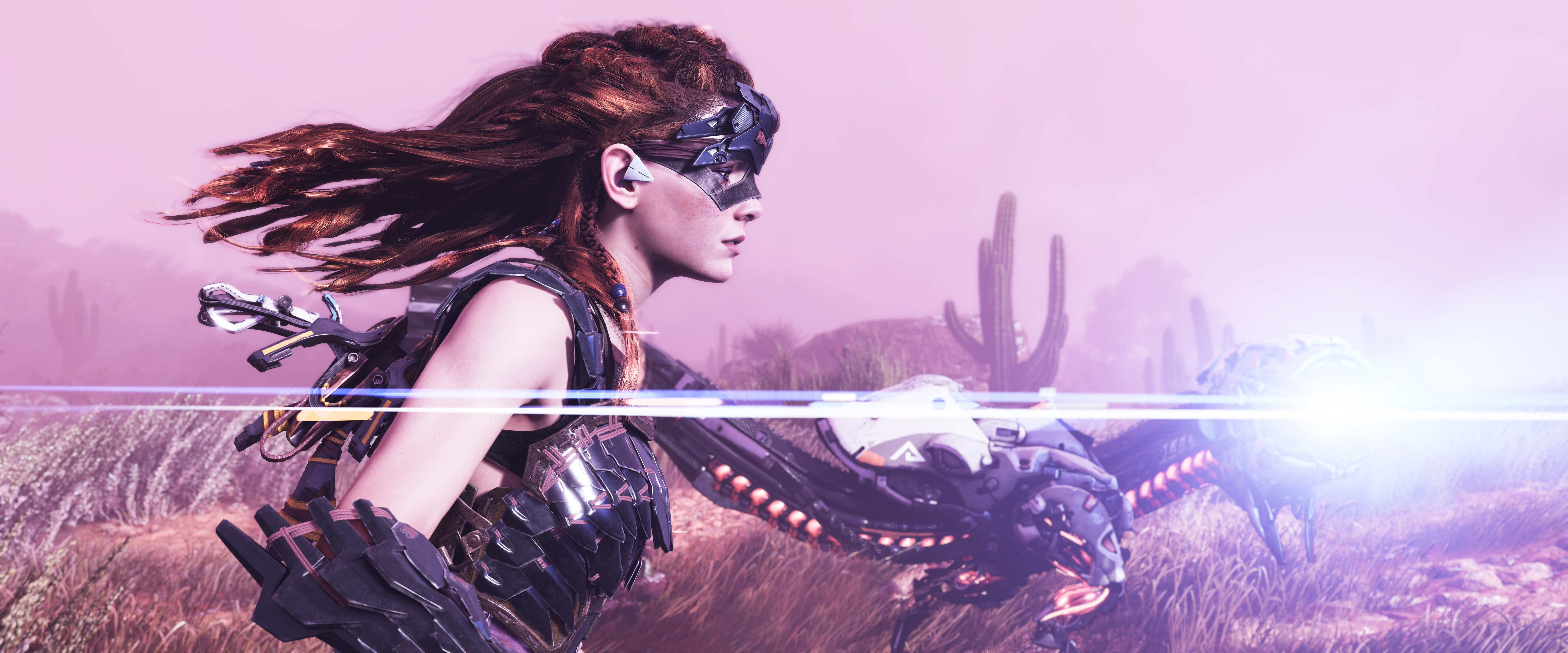 Aloy
Aloy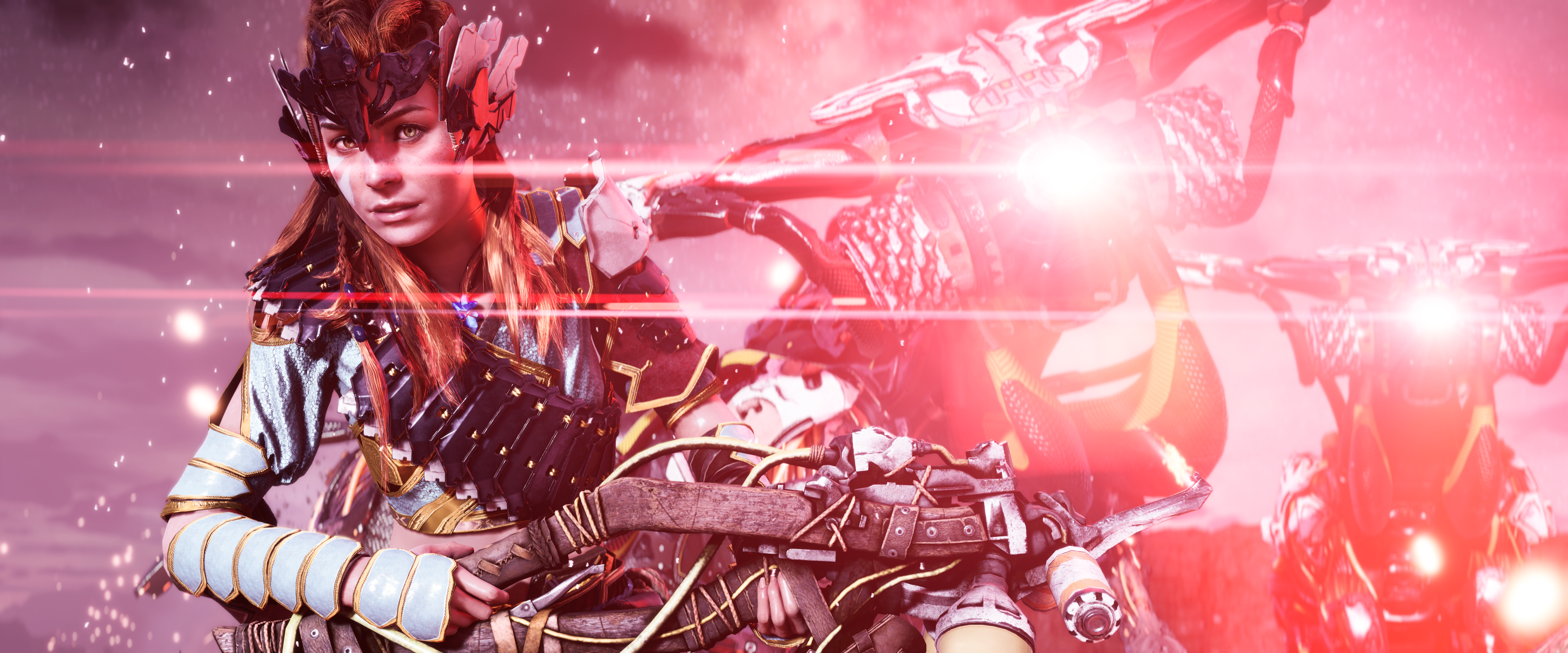 Aloy
AloyDas könnte dir gefallen
 Spiele 202647 Bilder
 Multiplayer27 Bilder
 Game Art40 Bilder
 Warzone20 Bilder
 Online-Spiele38 Bilder
 Call of Duty37 Bilder
 DLC24 Bilder
 Spieleposter47 Bilder
 Warhammer 40K36 Bilder
 Battlefield41 Bilder
 PlayStation46 Bilder
 PlayStation 436 Bilder
 Lords of the Fallen15 Bilder
 Nintendo Switch36 Bilder
 Android-Spiele36 Bilder
 Modern Warfare33 Bilder
 Xbox Series X und Series S45 Bilder
 Destiny26 Bilder
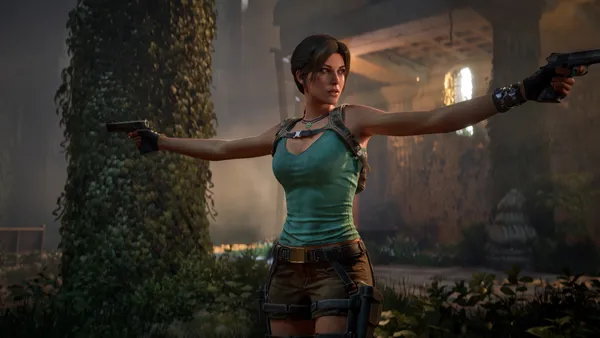 Lara Croft14 Bilder
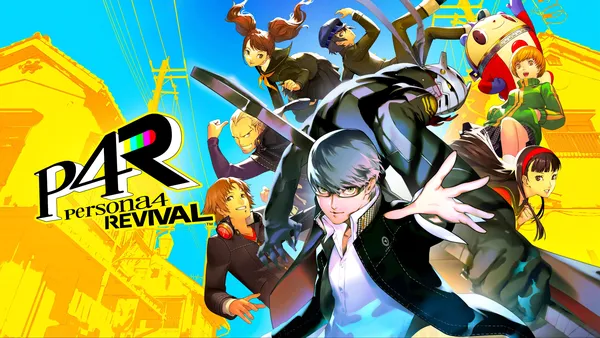 Key Art47 Bilder
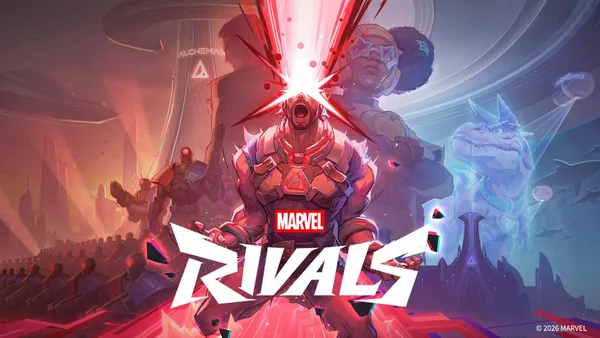 Marvel Rivals36 Bilder
 Fortnite36 Bilder
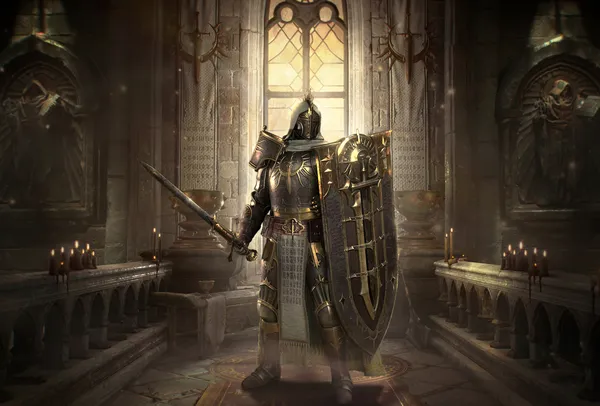 Diablo23 Bilder
 Xbox-Spiele15 Bilder
 Amazon Luna19 Bilder
 Remastered14 Bilder
 Actionspiele5 Bilder
 Xbox 36010 Bilder
 Crossover16 Bilder
 Krieg27 Bilder
So richtest du das Hintergrundbild auf deinem Gerät ein
Das passende Bild gefunden? Lade es über den Download-Button herunter und folge den Schritten unten — in wenigen Sekunden erledigt, am Computer wie am Smartphone.
Windows
- Klicke auf Download — das Bild landet im Ordner „Downloads“
- Rechtsklick auf die heruntergeladene Datei und „Als Desktophintergrund festlegen“ wählen
- Mehrere Monitore? Unter Einstellungen → Personalisierung → Hintergrund legst du fest, wo das Bild erscheint
macOS
- Klicke auf Download, um das Bild auf dem Mac zu speichern
- Öffne Systemeinstellungen → Hintergrundbild
- Klicke auf „Foto hinzufügen“, wähle das Bild aus und nimm „Bildschirm ausfüllen“
iPhone / iPad
- Tippe auf Download und dann auf „In Fotos sichern“
- Öffne die Fotos-App und wähle das gespeicherte Bild
- Tippe auf Teilen → „Als Hintergrund verwenden“, passe den Ausschnitt an und bestätige mit „Festlegen“
Android
- Tippe auf Download — das Bild wird in der Galerie gespeichert
- Öffne die Galerie (oder Google Fotos) und wähle das Bild aus
- Wähle im Menü „Als Hintergrund festlegen“ und entscheide: Startbildschirm, Sperrbildschirm oder beides